
Corvata Rate Studio — User Guide
Indirect Rate Strategy · Pricing — Version 3.17.0, current as of October 16, 2026.
What Rate Studio does, in nine steps.
Corvata Rate Studio is a modeling tool for designing, calculating, and comparing indirect rate structures for government contractors, built to FAR and DCAA guidance (the DCAA ICE Model is the reference methodology). It runs entirely in your browser — nothing you enter is sent anywhere unless you explicitly choose the optional AI-assisted account mapping feature and supply your own API key. There is no login and no account; your work exists only in the browser tab until you export it as a file.
| Step | What happens |
|---|---|
| Mode & Purpose | Choose whether you're calculating a single set of rates, designing and comparing up to five structures, or designing and comparing with What-If adjustments layered on. Enter company info. |
| Structures | Name each structure you're building (e.g. "Baseline," "Split OH Alt"). |
| Configure Structures | Build each structure's rate design — fringe, intermediate pools, overhead, MSOH, G&A, unallowables, B&P/IR&D — one tab per structure. |
| Data Requirements | See what level of data granularity your structural choices require, before you commit to entering cost data. |
| Configuration Summary | A full configuration summary — cost element routing, the computation cascade, and your first chance to save a JSON configuration file. |
| Budget Module (optional) | Only if your Data type is Budget and you're building the budget from scratch: six extra screens — Chart of Accounts, Baseline, Revenue, Labor, Cost Rollup, and Pro Forma — that build projected cost data bottom-up, can export the budget to your accounting software, and feed the same calculation engine. |
| Enter Cost Data | Upload a trial balance or enter costs manually — shared across every structure, entered once. |
| Calculate & Reconcile | Rates, full cascade detail, reconciliation checks, and Excel/PDF exports. |
| Pricing & Comparison | Wrap rates, cost multipliers, and a contract-pricing test (Cost-Type, Fixed Price, or T&M). |
| Hiring | Reverse-calculate the maximum salary you can afford to offer, given a billing rate and target profit. |
Which modes and how many structures, fringe pools, intermediate pools, and overhead pools you can configure may depend on your subscription plan. A mode or option your plan doesn't include shows a note explaining what's needed to unlock it — nothing is ever silently disabled without explanation.
Read this first.
Where the File menu lives
A File button sits at the bottom-left of every screen, in the same persistent footer bar as Back/Continue — it's the one place for everything file-related: Save, Save As, a connected client folder, importing a saved configuration, and (once you reach Calculate & Reconcile, Pricing & Comparison, or Hiring) exporting an Excel report or printing a PDF. You never need to hunt for the right button on the right screen.
When to save
You can save as soon as you've filled in company info and continued past Step 1 (Mode & Purpose) — the File menu's Save option appears right away and works from any screen after that. Save when you continue from one screen to the next, and at any point in between. There is no auto-save.
Where to save
We recommend creating one dedicated folder on your computer (e.g. "Rate Studio Clients") and keeping every client's file there, named for that client. This makes files easy to find again and keeps actual-vs-budget or year-over-year files from getting scattered.
Two ways to make repeat saves easier
One-click re-save
Chrome/Edge only. After your first save, the File menu's Save option writes back to that exact file with no dialog. Choose "Save As…" from the same menu if you want to save a copy under a different name instead.
Connect a client folder
Chrome/Edge only. Browse, open, and save directly within one folder of client files, without picking a location every time. Available from the File menu and the Mode & Purpose screen.
A yellow banner appears at the top of the screen whenever you have unsaved changes, and a brief reminder toast appears if you click Continue with unsaved changes — both are reminders, not a guarantee. Get in the habit of saving proactively rather than relying on them.
Reusing a configuration year over year
Every export follows one consistent filename pattern so files never collide and you can tell what's inside without opening it:
client-fiscalyear-actual|budget-modetype-date-rate-config.json
e.g. acme-federal-services-llc-fy2026-budget-compare-2026-08-27-rate-config.json
To reuse last year's structure for a new period (e.g. 2025 Actual → 2026 Budget):
- Import the 2025 Actual JSON (File menu → Import configuration, from any screen). This restores the full rate structure and the 2025 cost data, and takes you to the configuration summary.
- Go to Step 1 (Mode & Purpose) and update the Fiscal year field and the Data type selector to Budget, then continue.
- Go to Step 6 (Enter Cost Data) and replace the numbers — re-upload a 2026 budget trial balance (the tool reuses your existing account mappings and only asks you to review what's new or changed), or edit manual entries in place.
- Continue through Step 7 to get 2026 budget rates against the same structure.
- File menu → Save As — the filename will automatically reflect the new year and data type, so it will never overwrite your 2025 Actual file.
You never have to touch Structures, Configure Structures, or Data Requirements again for this workflow — that's the entire point of reusing the JSON.
Moving around, typing amounts, taking things back.
Every sidebar step and tab works from the keyboard: Tab to it, then press Enter or Space; on a row of tabs the arrow keys, Home and End move between them, and a focus ring shows where you are. Dollar fields show $1,234.56 and accept 1234.5, 1,234.50 or $1,234.50. When you remove an employee, plan, cost line or row, an Undo bar appears for eight seconds (Ctrl+Z also works); making any other change closes the offer.
One tag, resolved by each structure.
A business line (for example Services or Manufacturing) is the tag you put on cost lines, trial-balance accounts, labor, Cost Rollup rows and revenue. The list starts as the overhead pool names of your structures and you can add, rename or remove entries. The Business lines and pools table, on the Business Lines tab of Configure Structures (Data Requirements and Labor > Setup link to it), says which of each structure's own overhead pools a business line lands in. A structure uses its table first, then a pool with the same name, then its only pool. So the same data works in a structure with one overhead pool and a structure with several: enter it once, and each structure calculates it in its own pools. If a structure does not use MSOH, costs recorded as MSOH (in a trial balance or the budget) are treated as G&A by default; on that structure's MSOH card you can choose overhead in one of its pools instead, so the same cost data works in a structure with MSOH and one without. A business line with no pool in a structure shows as "choose pool", and until you choose one its dollars are left out of that structure and appear under "Not used by this structure" on Calculate & Reconcile.
Always one click away.
The Instructions screen is always available from the sidebar (the compass icon above the numbered steps) and never locks, so you can return to it any time. It contains a short walkthrough of how the wizard works, the Saving Your Work guidance above, and six pieces of domain guidance worth reading once before your first structure:
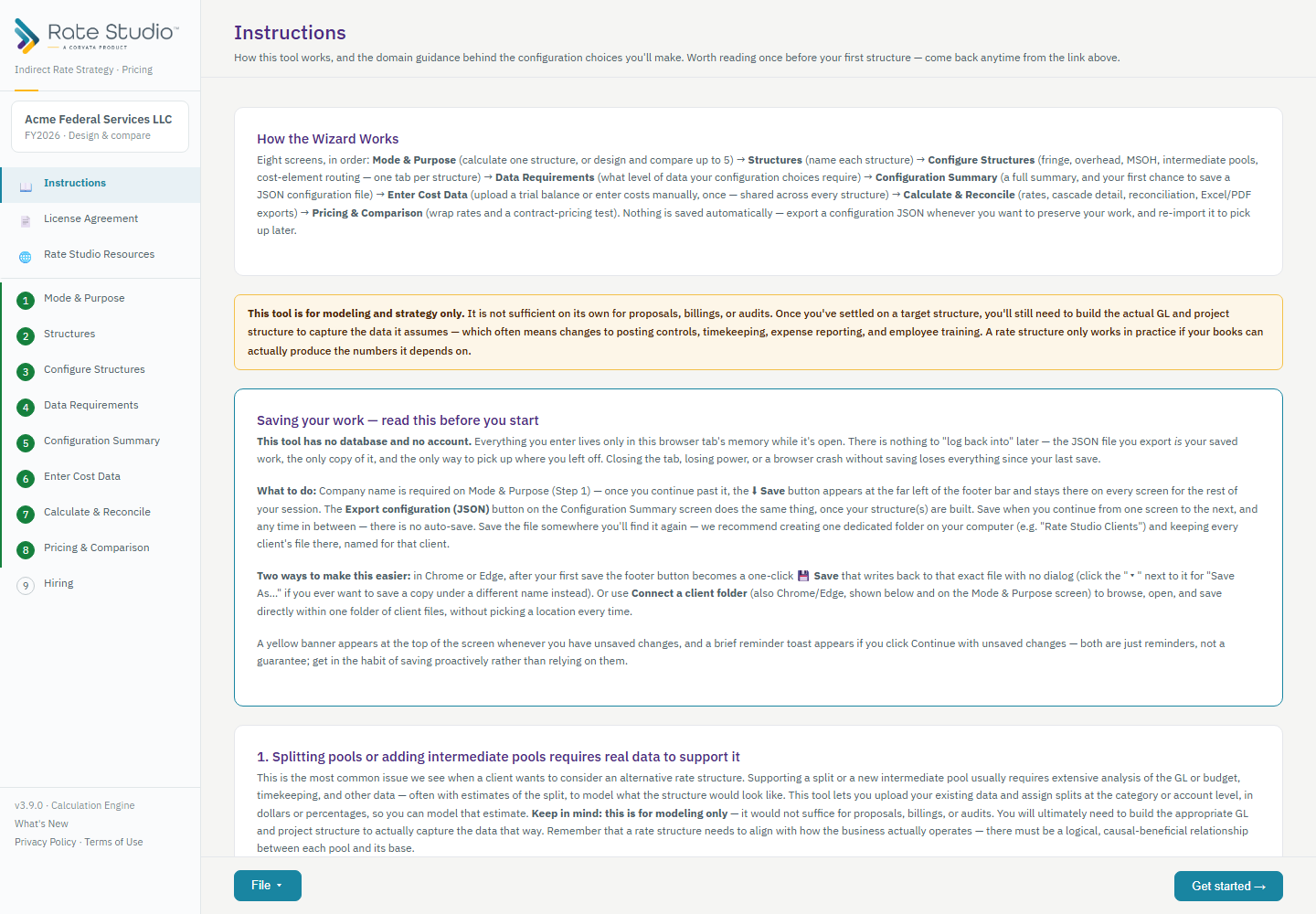
- Splitting pools or adding intermediate pools requires real data to support it — this is the most common issue when a client wants to model an alternative structure.
- More than one fringe pool is not standard — the common, defensible splits are SCA/Non-SCA or Union/Non-Union.
- Common intermediate pools are Facilities, IT, and HR — the driver (square footage, headcount, etc.) must have a real, defensible causal-beneficial relationship to the pool.
- Common overhead splits are by division, location, product/service line, or client site vs. company site.
- MSOH typically covers all materials and subcontracts in a service business; in manufacturing, materials may instead run through the appropriate overhead pool.
- G&A is always at the entity level and never split within a legal entity. Total Cost Input (TCI) is most common; Value Added is common with MSOH; Single Element is rare outside the DOT/AASHTO world.
The sidebar also has a permanent License Agreement link and a single Rate Studio Resources link — your gateway to the User Guide, Security Overview, and Help/FAQ on the main Corvata website.
Mode & Purpose
Open existing work, enter your company information, then choose your mode.
Calculate Single Set of Rates
A single structure, your existing setup only. Actual or Budget.
Perform a What-If Analysis
Your baseline plus one What-If. The structure is locked, and you change dollar amounts only (a new hire, a raise, a reallocation between pools), without a new trial balance upload. Every difference in a rate traces to the dollars you changed.
Model Multiple Rate Structures
Your current structure as the baseline plus up to 5 alternative structures, compared side by side. The dollars are locked: every structure uses the same cost data, and only the structure changes. Every difference in a rate traces to the structure.
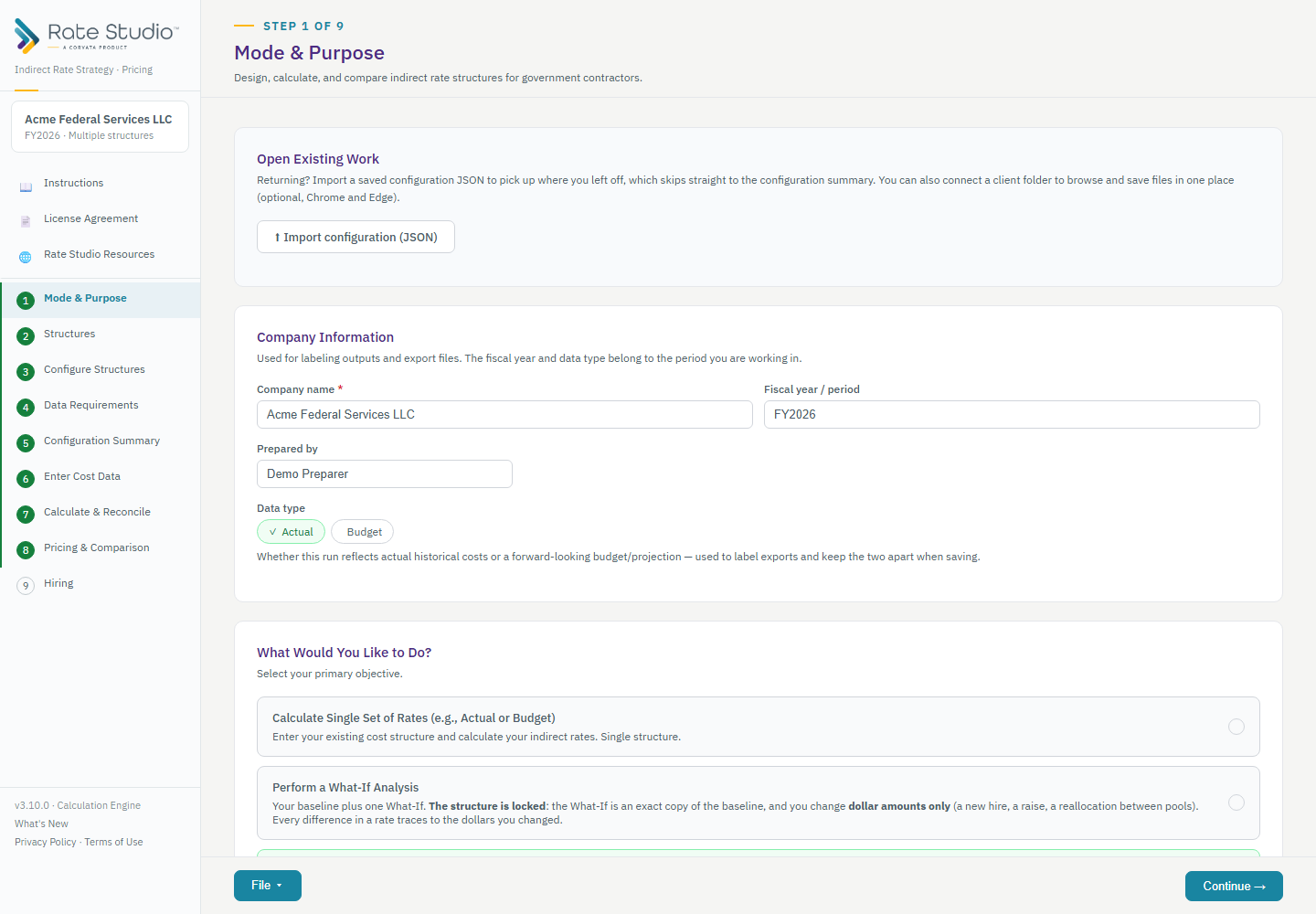
Returning to a saved file? Use Open Existing Work at the top (import a saved configuration, or connect a client folder) and skip straight to the summary. Otherwise start with Company information: fill in Company name, Fiscal year / period, Prepared by, and the Data type selector (Actual vs. Budget; choosing Budget asks whether you already have a completed budget to load or need to build one — see the Budget Module section below) — this feeds directly into every export filename so an actual run and a budget run for the same period never collide or overwrite each other. See Saving Your Work for the full save/reuse workflow this enables. Once this screen is complete the company name locks (use Edit name to change it), because every period in the file shares it; the fiscal year and data type belong to the period you are working in — see Periods.
Structures
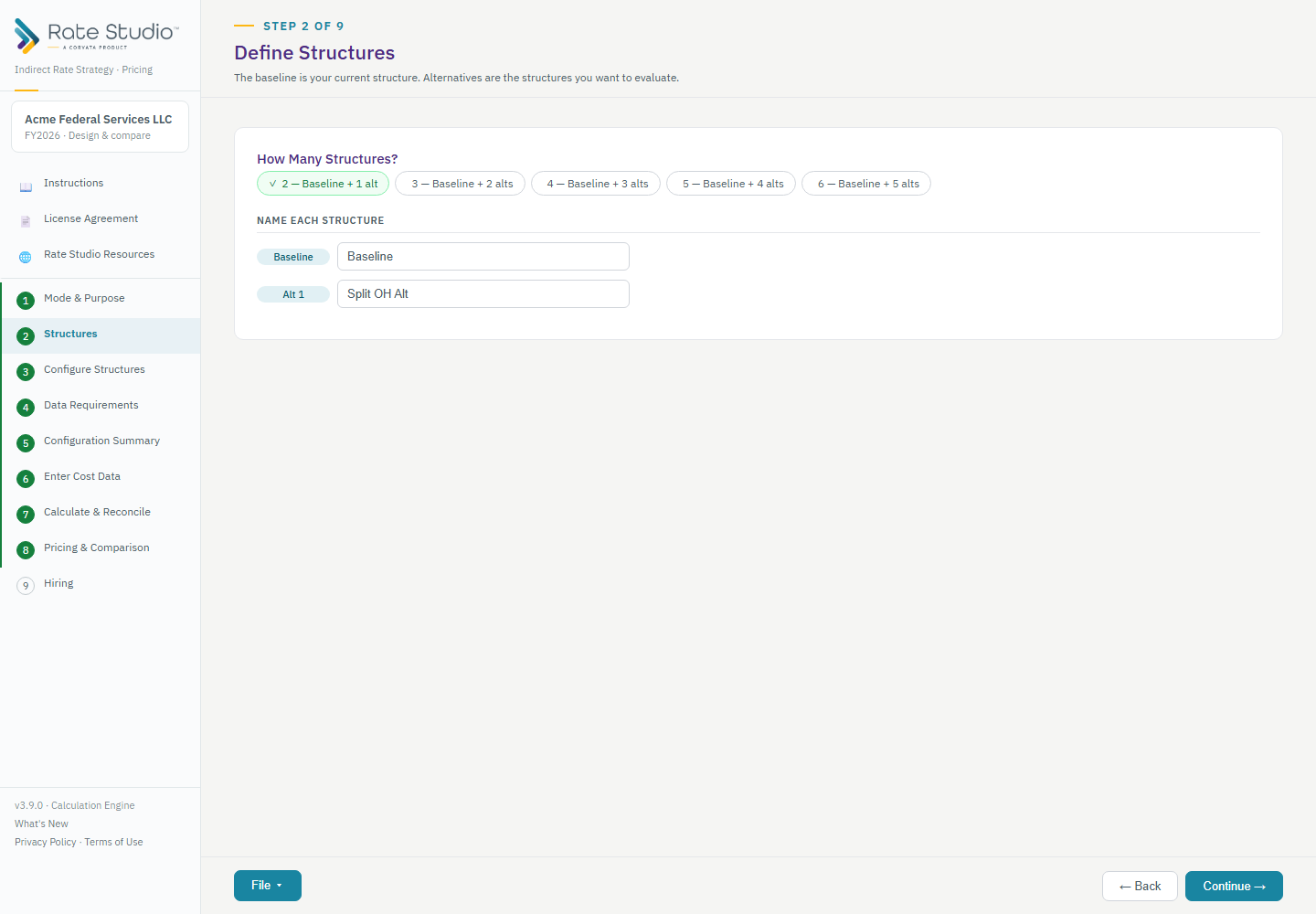
Name each structure you're building. In Calculate mode there's only one (defaults to "Baseline"). In What-If mode, name the Baseline and the What-If. In Model Multiple Rate Structures, name the Baseline and each alternative — use names that mean something to you (e.g. "Split OH by Division," "Add IT Pool") since these names appear throughout every later screen, report, and export.
Configure Structures
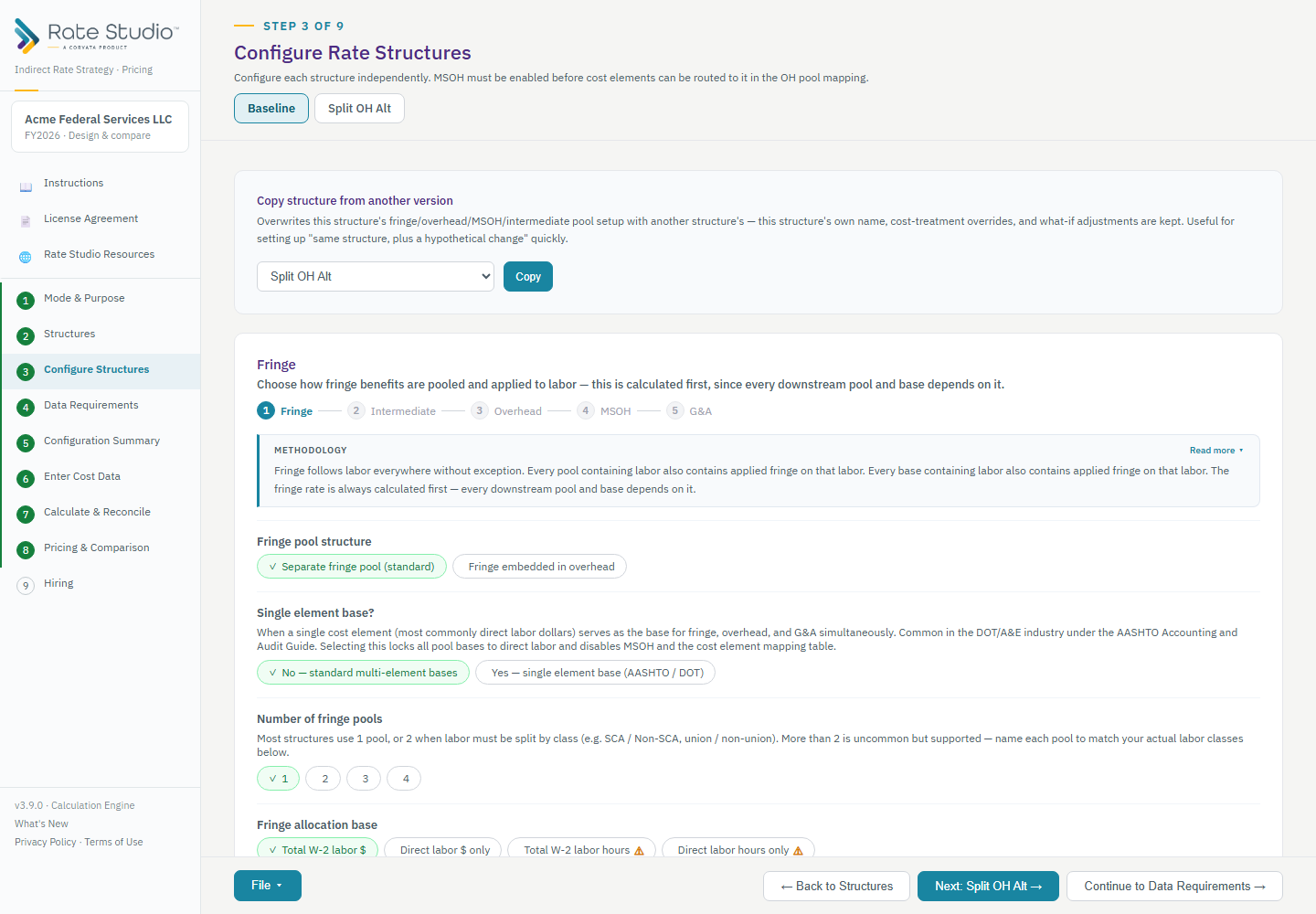
This is the heart of the tool. Each structure gets its own tab, and within a structure you move left to right through the cascade: Fringe → Intermediate → Overhead → MSOH → G&A. This order is fixed and mirrors the actual calculation sequence — every downstream pool and base depends on the ones before it, so the tool always calculates in this order regardless of what order you configure things in.
Every card follows the same pattern: a short instruction, a small cascade diagram showing where you are, then the detailed methodology reference text. Key things each card asks you to decide:
| Card | Key decisions |
|---|---|
| Fringe | Separate pool or embedded in overhead; number of pools (1 is standard, up to 4 depending on your subscription level); allocation base (total W-2 labor $ is most common). |
| Intermediate | Which pools exist (Facilities/IT/HR/custom), their allocation driver, and feed order between them if one feeds another. The number you can configure depends on your subscription level. |
| Overhead | Number of pools (up to 20, depending on your subscription level), each pool's name and base method, and — critically — the cost-element routing table (which pool each of materials/subcontracts/travel/ODC flows into). |
| MSOH | Whether to use a Material & Subcontract Handling pool at all — must be turned on before routing elements to it in the overhead table above. |
| G&A | The G&A base type (TCI / Value Added / Single Element) is derived automatically from your routing choices above — it is never a direct toggle. |
Data Requirements
Before you commit to entering cost data, this screen previews exactly what granularity your structural choices will require. Two severity levels, and they mean different things:
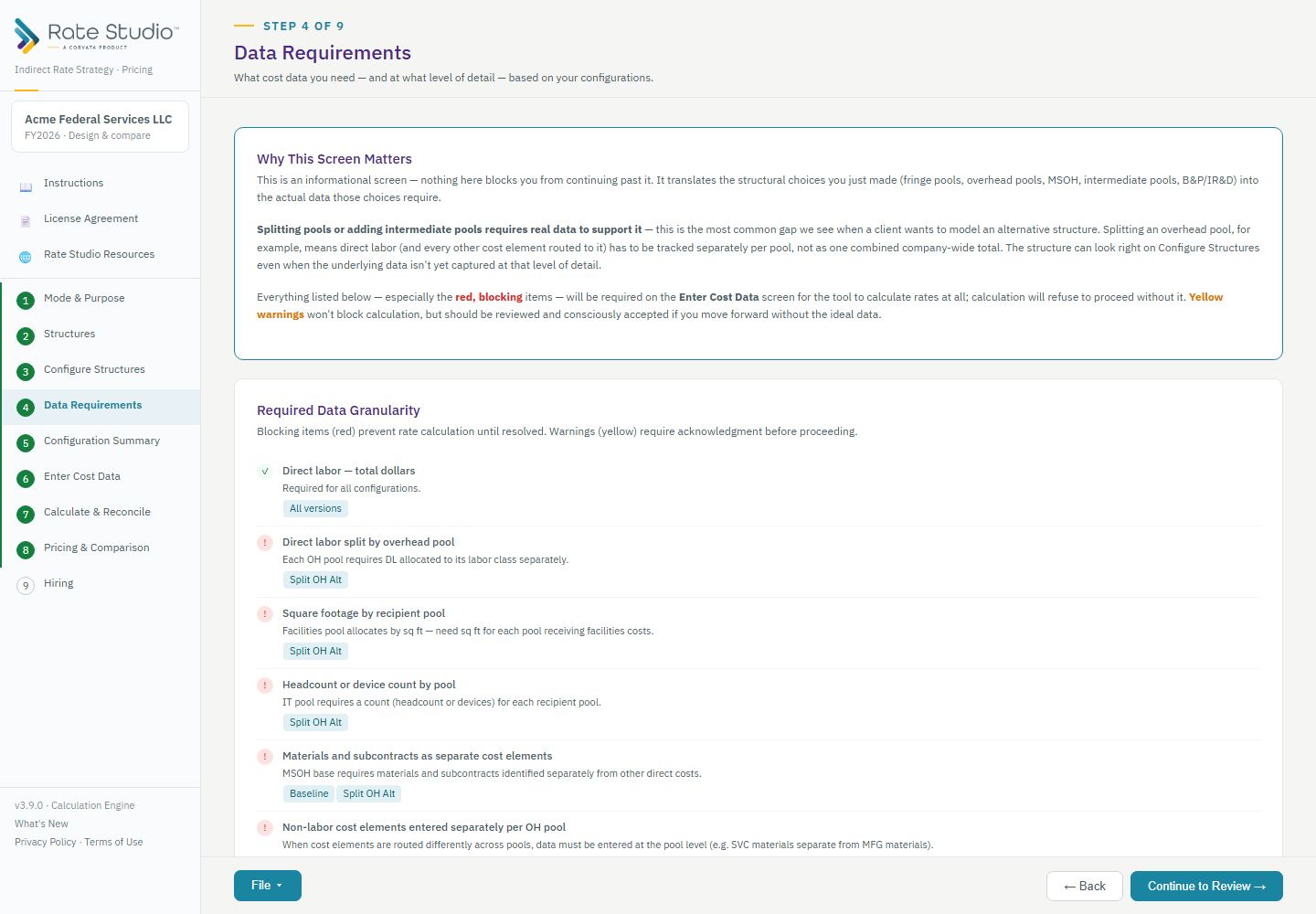
Blocking
Data your structure genuinely requires (e.g. splitting overhead into 2 pools requires direct labor allocated by pool). Nothing on this screen itself blocks you from continuing — it's a preview — but Step 7 (Calculate & Reconcile) will block calculation later if this data is actually missing once you enter costs.
Warning
Items needing acknowledgment rather than a hard block — external data not in the GL, like hours-based rates, or a documented custom allocation basis.
If you see a blocking item you know you can't realistically support with data, this is the moment to reconsider the structural choice on Step 3 — before building further.
Configuration Summary
A complete summary of every structure's configuration — and a natural checkpoint to save if you haven't already (see Saving Your Work). Three things this screen shows you:
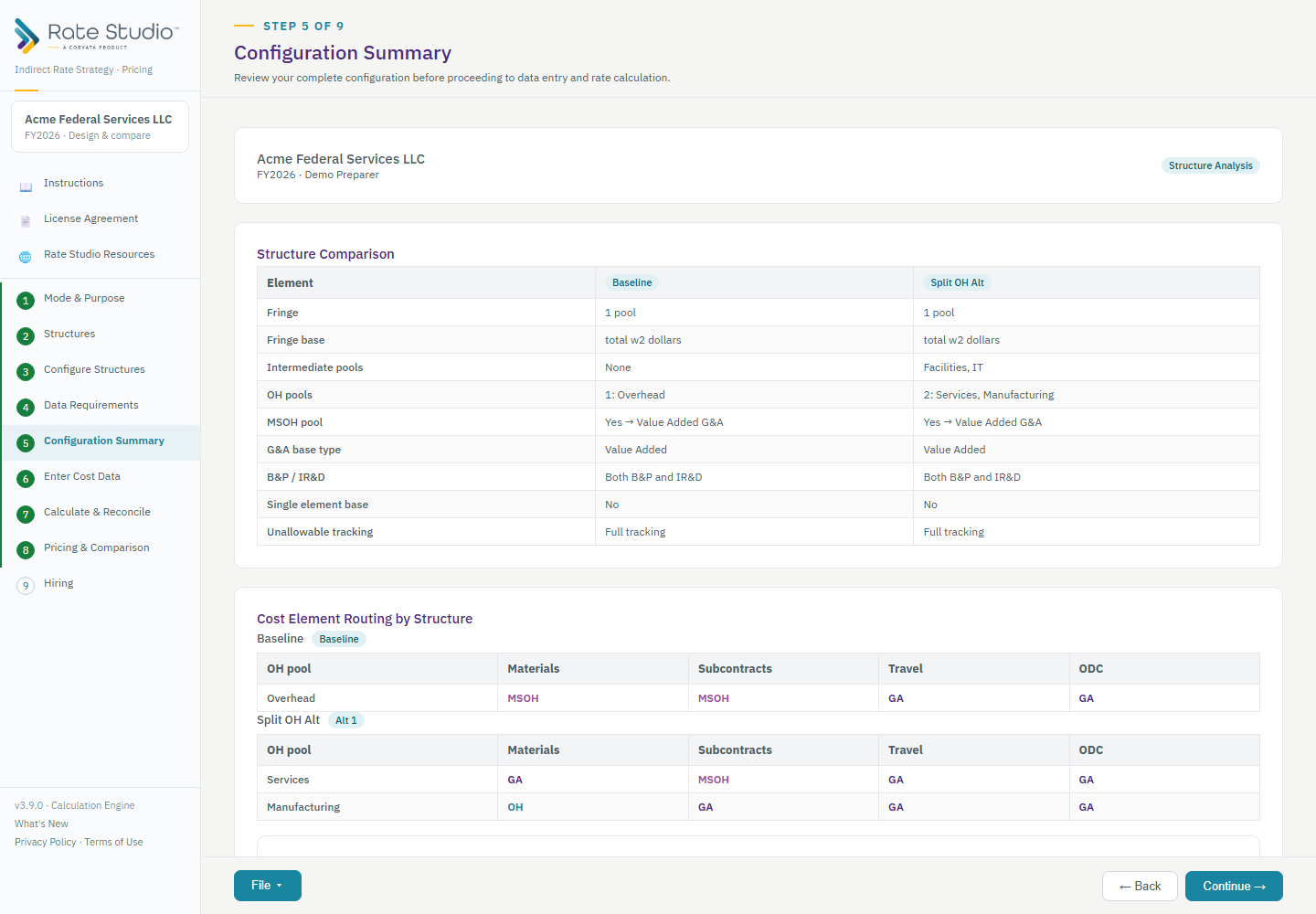
Structure Comparison
Every structural choice, side by side across structures.
Cost Element Routing by Structure
One table per structure showing exactly where materials, subcontracts, travel, and ODC each flow (OH base, MSOH, or G&A) for every overhead pool.
Computation Cascade
The fixed 8-stage calculation order, from Fringe through Contract Pricing, so you can see how everything fits together before entering real data.
Save your configuration from the File menu in the footer — the same menu you'll use on every later screen too:
- Save — downloads (or, in Chrome/Edge, writes directly to) a file capturing your entire structure. No cost data yet at this point — just the structure.
- Connected folder — if you've connected a client folder (optional, Chrome/Edge only), saves directly there.
You can also choose Import configuration from the same File menu to skip straight back to this summary from a previously saved file.
Building a budget from scratch.
When Step 1's Data type is Budget and you choose "I need to create one," six more screens appear in the sidebar between Configuration Summary and Enter Cost Data. They build your projected cost data bottom-up, then hand it to the same calculation engine used for actual data. (If you already have a completed budget, choose "I have a completed budget" instead and load it as a trial balance in Step 6 — everything else works exactly as it does for Actual data.)
| Screen | What you do |
|---|---|
| Chart of Accounts | Set up the accounts the budget is built on: each account's type, calculation category and subcategory, the departments inside your pools, and links from last year's accounts to this year's. See below. |
| Budget: Baseline (optional) | Load prior-year actuals and current-year-to-date data as reference numbers, from a trial balance (CSV/Excel), a previously exported Rate Studio file, or another period in the same file. Skip it entirely to build from scratch. |
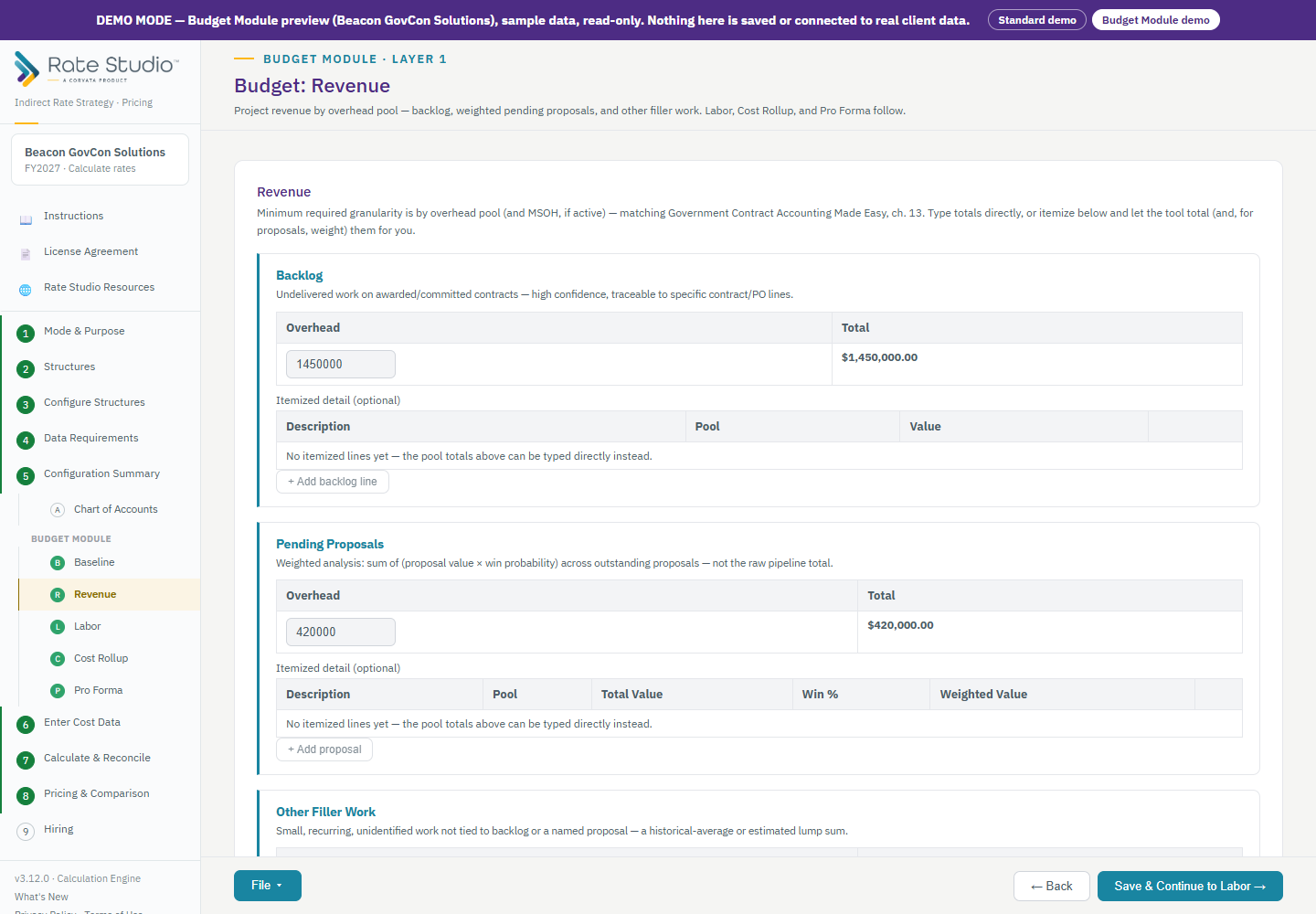
| Budget: Revenue | Project revenue by overhead pool — backlog, probability-weighted pending proposals, and other filler work. |
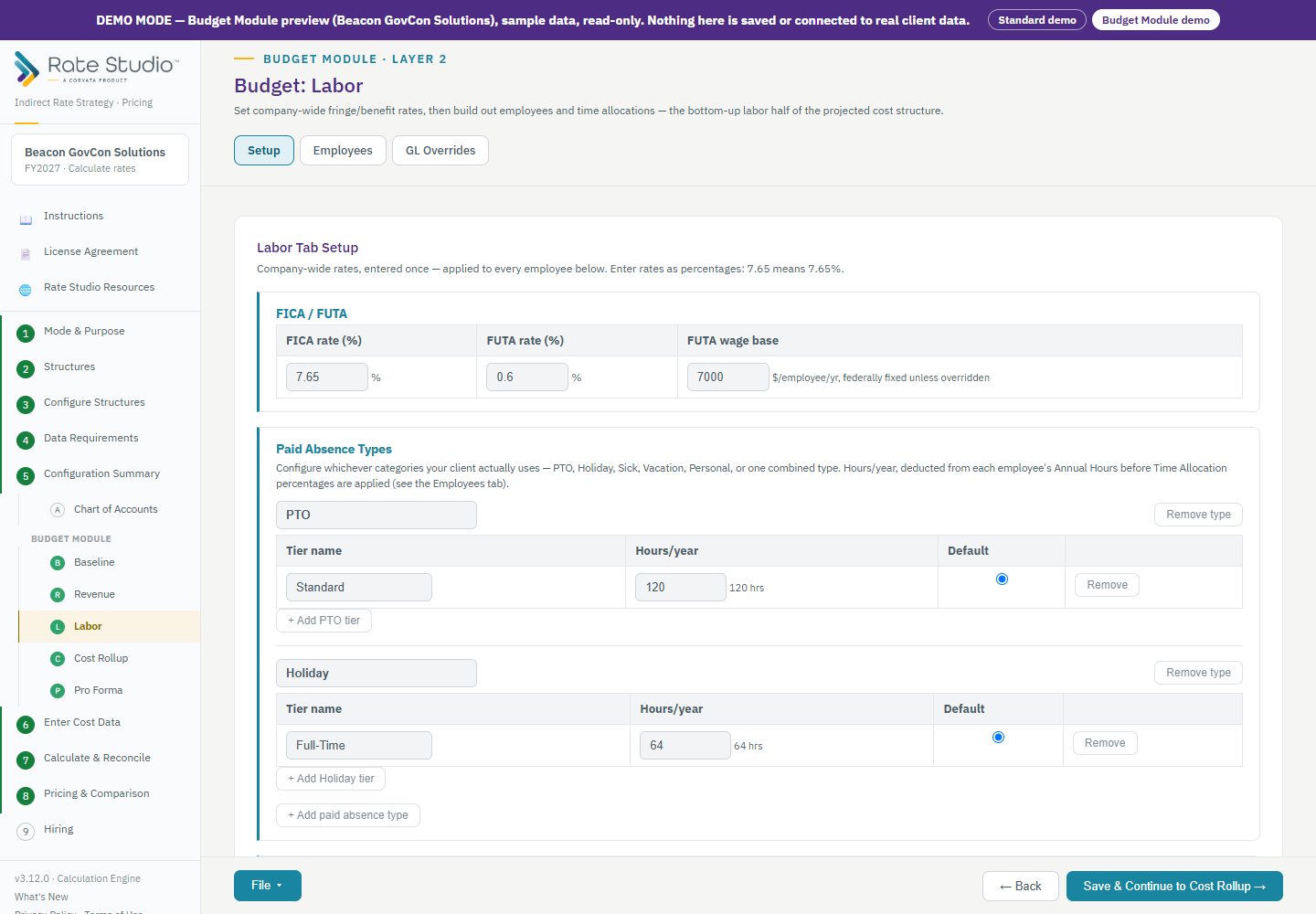
| Budget: Labor | Three sub-tabs. Setup holds company-wide fringe and benefit rates, an addable list of Paid Absence Types, benefit classes, workers' comp by job class, state unemployment rates and wage bases, and an optional dollar cap on the retirement match. Employees is where each employee's pay, department and time allocations live. GL Overrides adds or subtracts an adjustment on a computed component, with a required rationale. |
| Budget: Cost Rollup | One tab per pool: project each pool's expenses by account, with a required note on every line, and see the pool reconcile to the calculation engine. See below. |
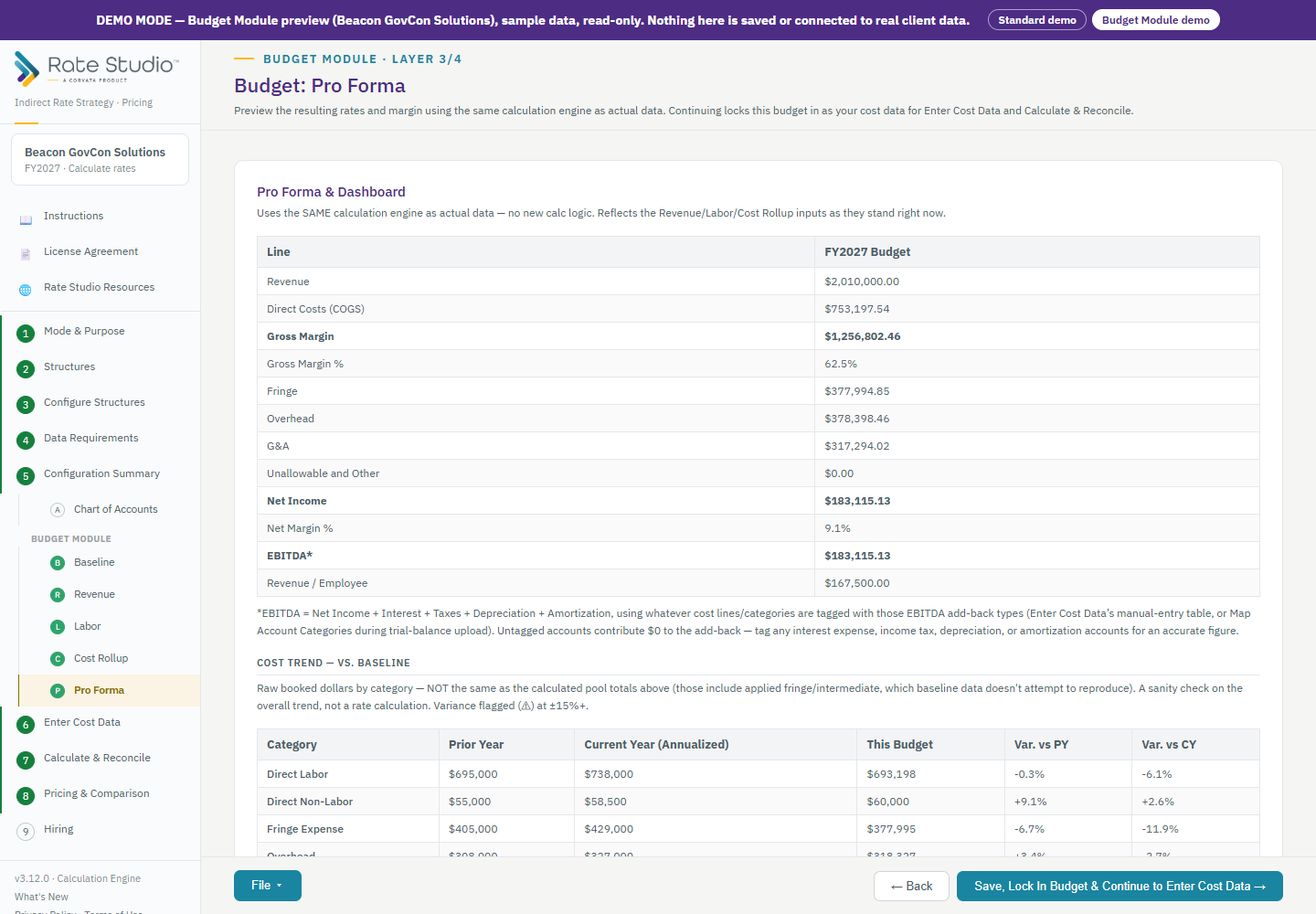
| Budget: Pro Forma | Preview the resulting rates and margin, with a cost-trend comparison against your baseline. Continuing locks the budget in as the cost data for Enter Cost Data and Calculate & Reconcile. |
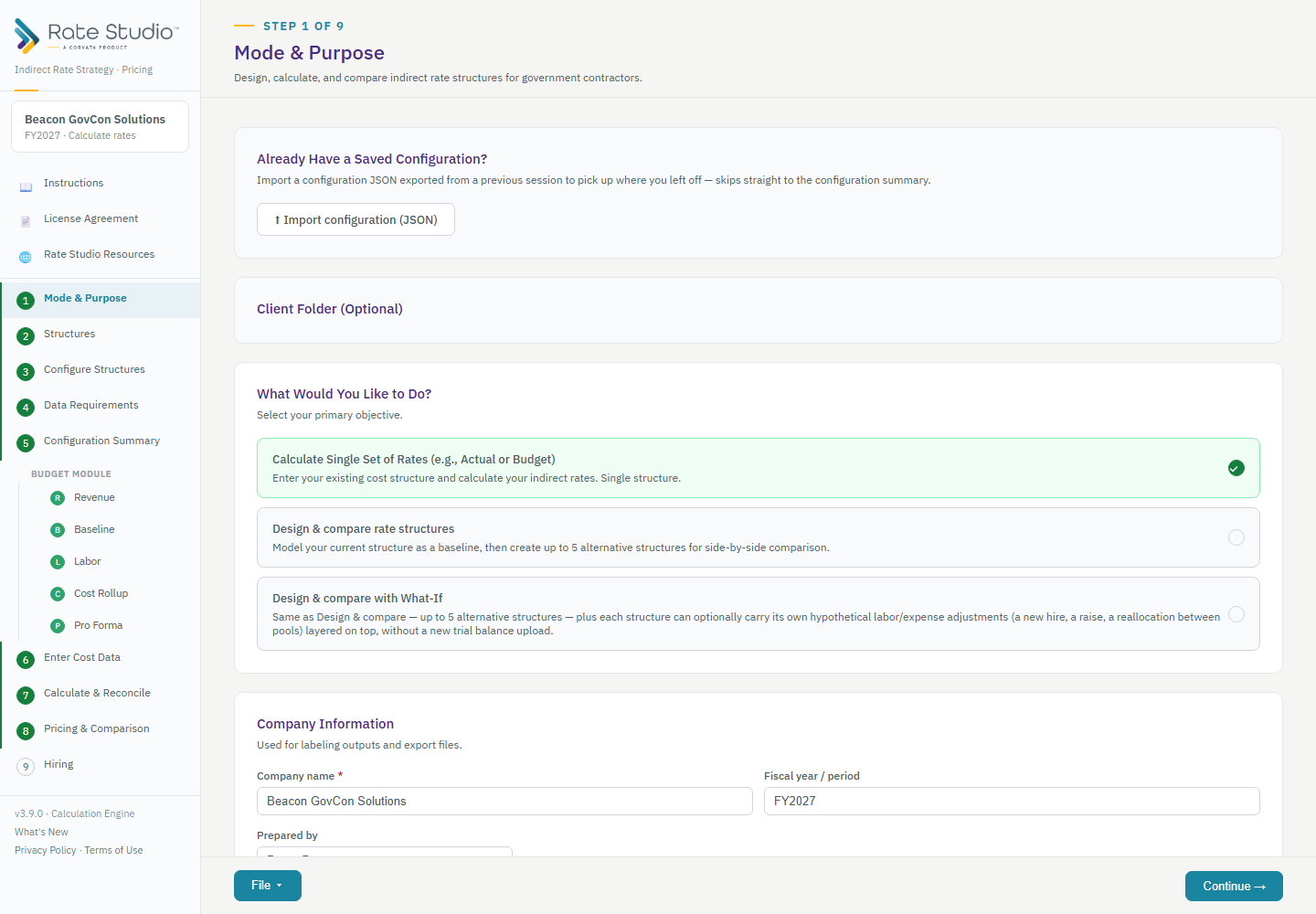
Chart of Accounts
The chart is kept per period, so account numbers and structures can change from year to year. It has four tabs.
- Accounts — each account's Type (Asset, Liability, Capital/Equity, Revenue, Direct, Expense, Other), its Category (the calculation category from your account mapping), and a recommended Subcategory (Insurance, Travel, Employer taxes, and so on). Subcategories organize Cost Rollup and the export; they never change a rate. Import a chart from CSV or Excel, add accounts one at a time, or use Suggest subcategories to fill them in from the account names.
- Prior-year links — when the chart changes between the baseline year and the budget, link each older account to its new account. The baseline column on Cost Rollup then adds the old dollars to the new account, and any budget lines already entered move with the link. Rate Studio proposes links from a crosswalk file or from matching names; you confirm, change or mark an account "not carried forward."
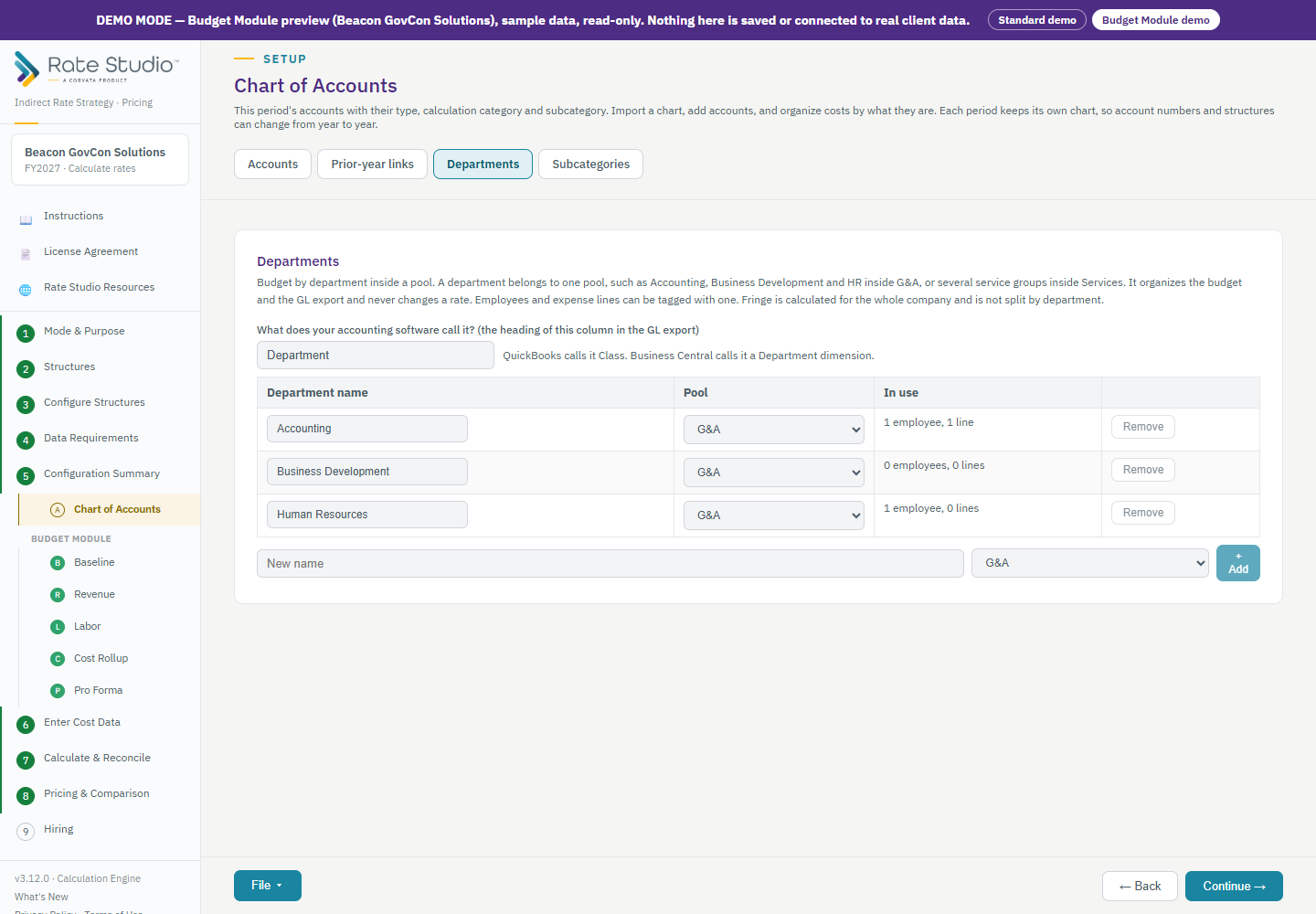
- Departments — budget by department inside a pool (for example Accounting, Business Development and HR inside G&A). Each department belongs to one pool. You also name the column the way your accounting software does (Class in QuickBooks, Department or Dimension in Business Central).
- Subcategories — the list the Accounts tab draws from. Add, rename or remove entries.
Baseline, Revenue and Labor
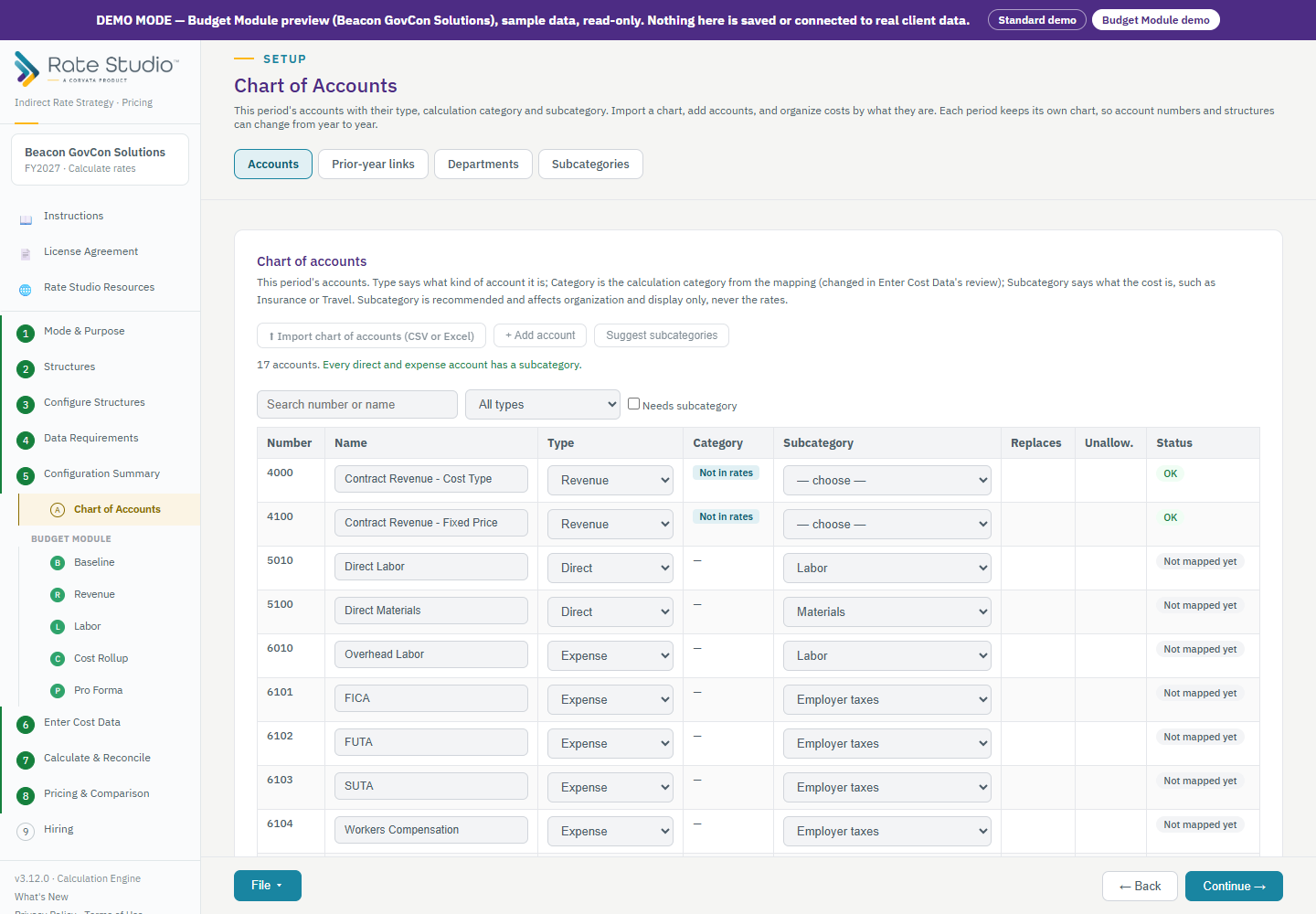
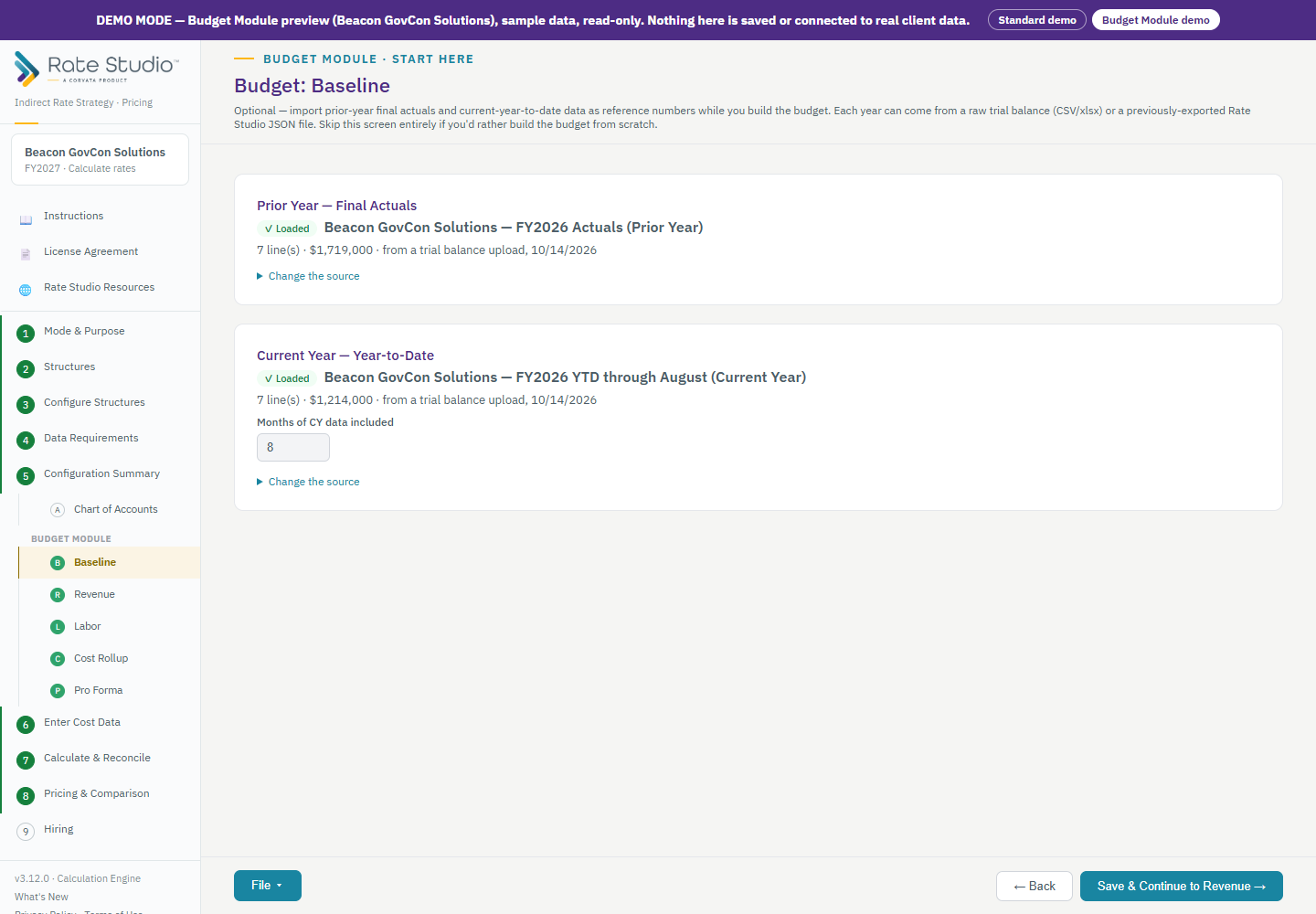
Baseline comes first because it is reference data for everything after it. Once loaded, the screen shows the period it came from, the number of lines and the dollars; choose "Change the source" to replace or remove it. When most baseline accounts are not in the current chart, a banner offers the Prior-year links tab.
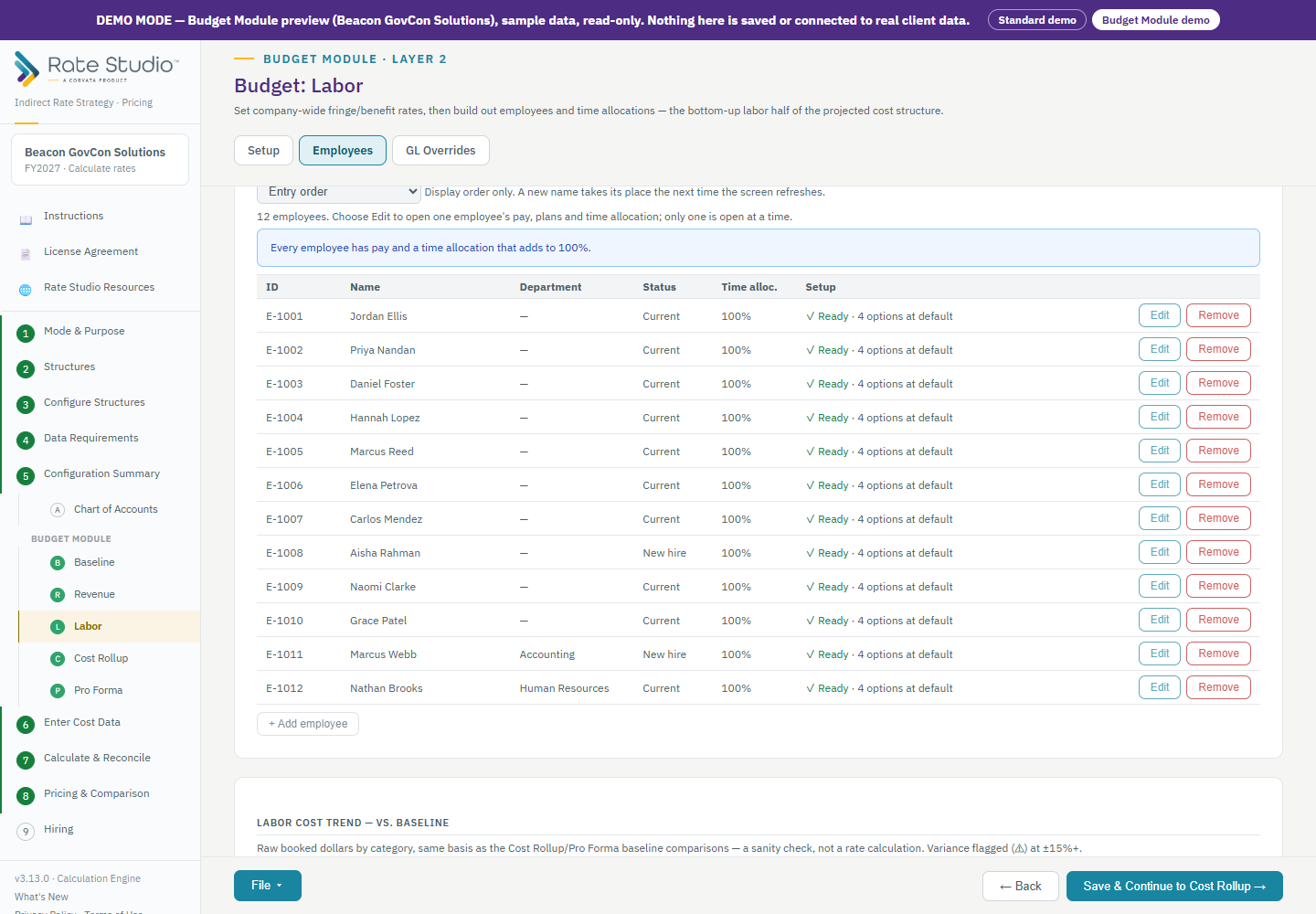
On Labor, percentages are typed as percentages (type 8 for 8%). Time allocation percentages are percentages of worked hours (annual hours minus paid absences). Time is allocated to a kind of work (Direct, Overhead, B&P, IR&D, G&A, MSOH or an intermediate pool) and, for the first four, a business line such as Services or Manufacturing. On the Setup tab, Business lines and pools says which overhead pool of each structure a business line lands in, so one allocation works in every structure you compare. Every other employee option (benefit class, each paid-absence type, SUTA, workers' comp, health, dental, retirement, other benefit) needs an explicit choice: Company default, No election, or a specific plan. Options not yet chosen are highlighted and counted on the employee list; Set all unselected to Company default fills them in one step without changing any number. Employees can be keyed in or loaded from the Excel template: it has drop-downs built from your own pools, departments, plans and benefit classes, limits on numbers, and a Check column that flags problems before you import. Export current employees to Excel gives you the same workbook already filled in with the employees in the open period, so you can edit a roster in Excel and import it back (importing replaces the employee table, so keep every employee you want).
With more than three employees, each one is a single summary line: ID, name, department, status, time-allocation total, and a Setup column that says Complete or lists what is missing (name, pay, annual hours, an allocation that does not add to 100%, or options not yet selected). A banner counts the employees that need attention and can filter the list to them. Choose Edit to open one employee's full set of fields; only one is open at a time.
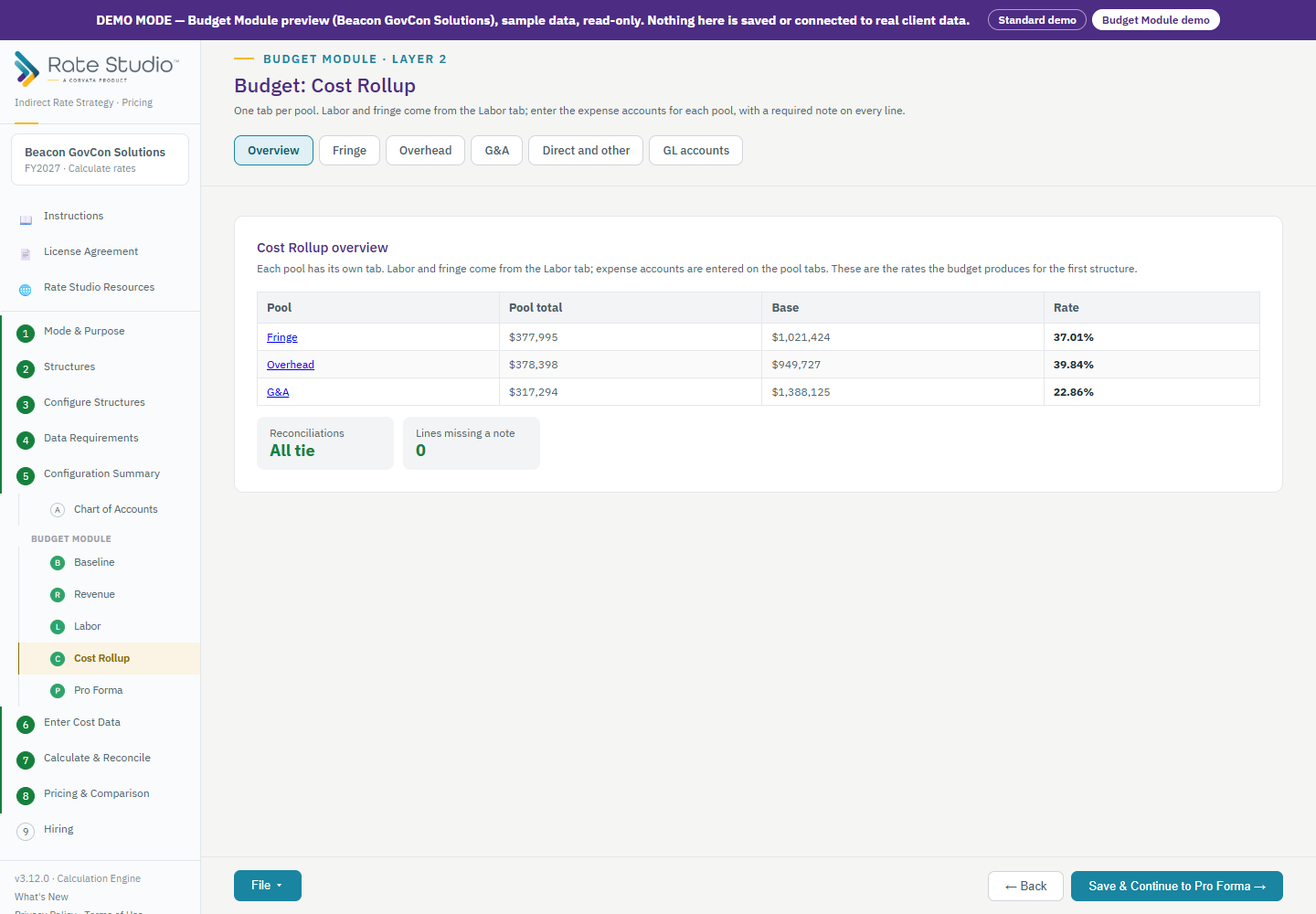
Cost Rollup, one tab per pool
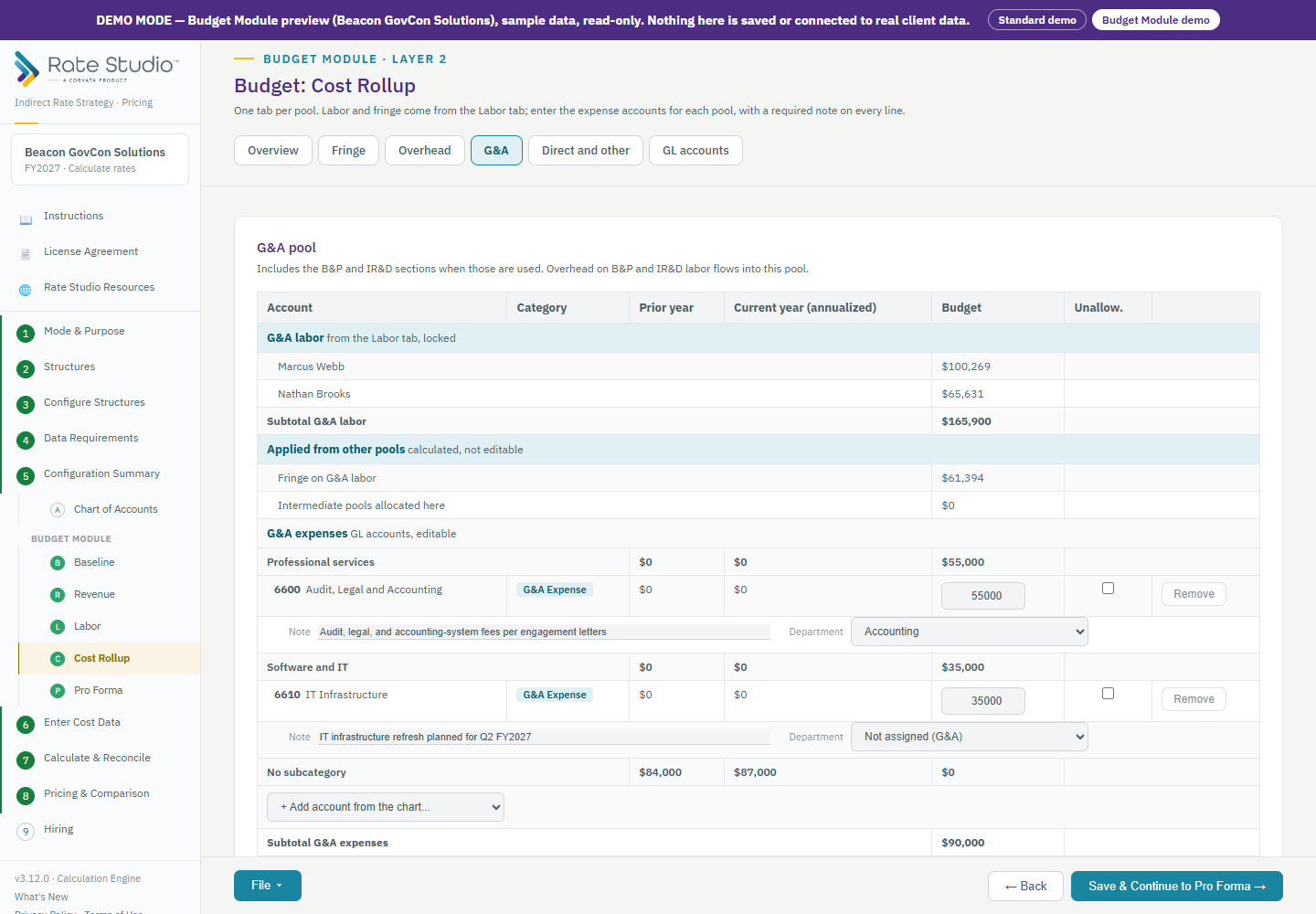
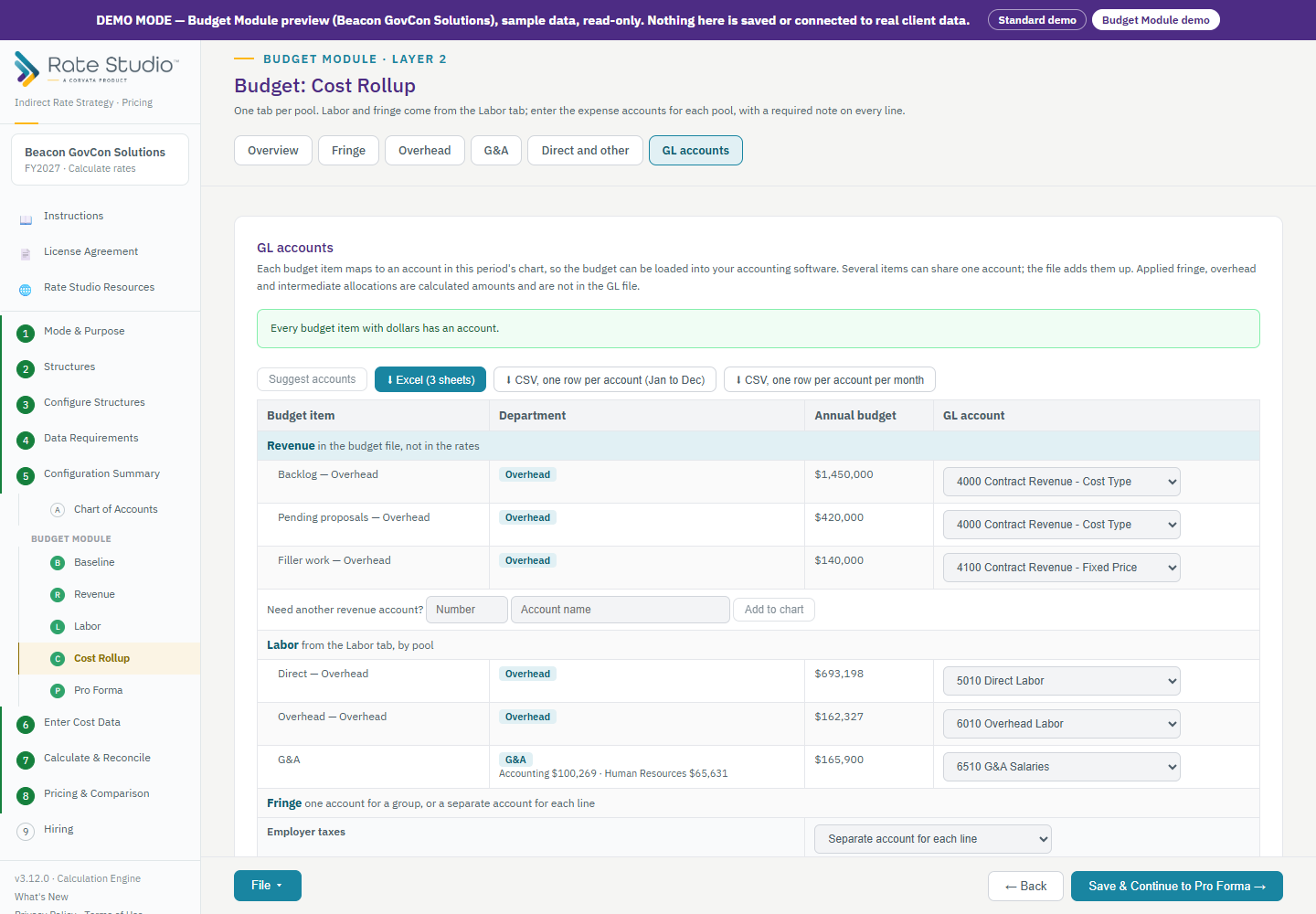
Each pool has its own tab: Overview, Fringe, every intermediate and overhead pool, MSOH when used, G&A, Direct and other, and GL accounts. On a pool tab, labor and applied fringe are read-only and come from the Labor tab. You add the pool's expenses by choosing an account from the chart (or adding a new account to the chart), and every line needs a note. Lines are grouped under their subcategory, with the baseline and budget totals beside them. Where the pool has departments, each line can carry one. Each pool tab reconciles to the calculation engine and warns if it does not.
Intermediate pool tiles show the allocation driver in its own units, such as square feet and dollars per square foot.
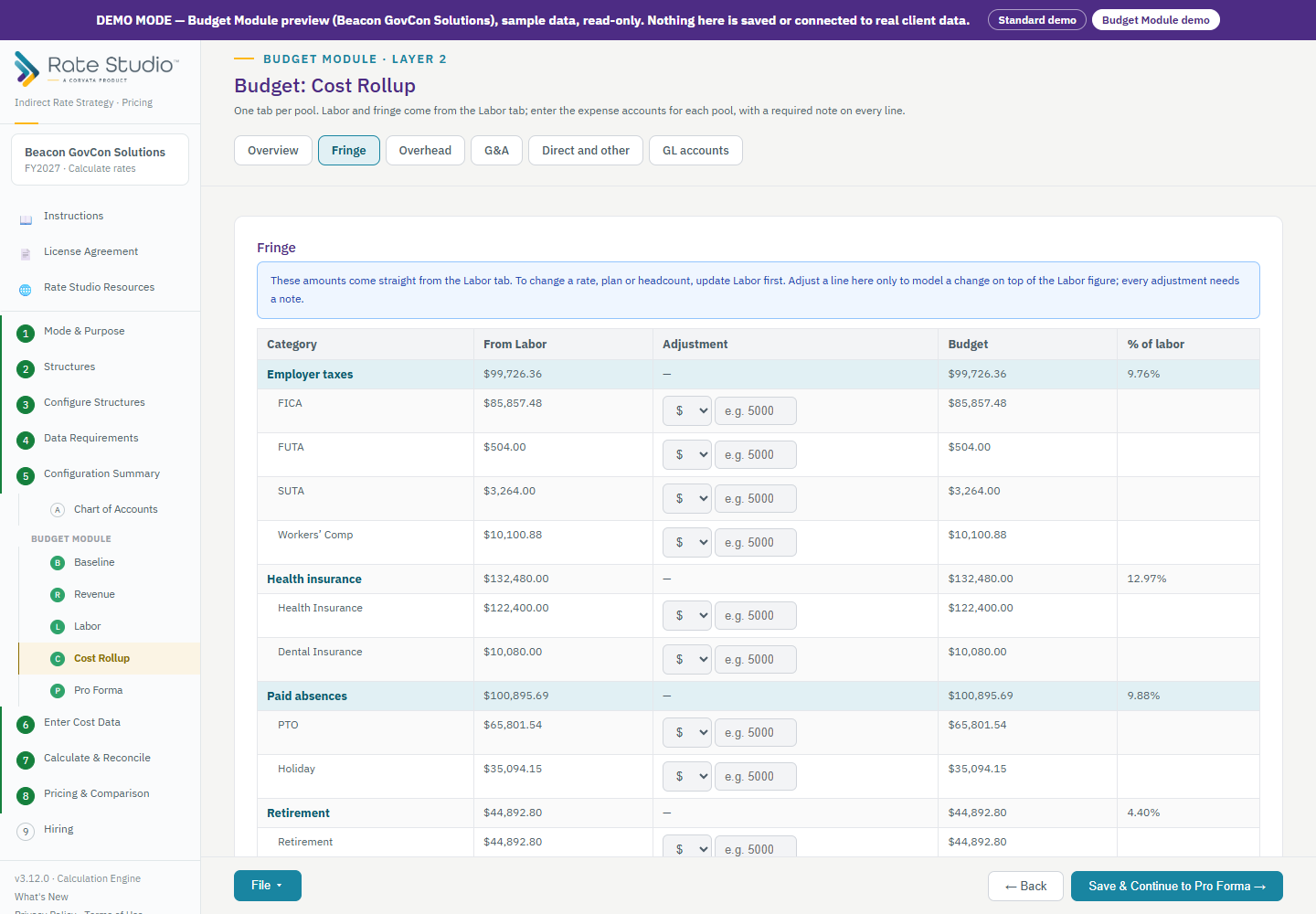
The Fringe tab shows the amounts that came from Labor, grouped as employer taxes, health, paid absences and retirement. You can adjust a line by dollars or percent to model a change on top of the Labor figure; every adjustment needs a note.
GL accounts and the budget export
The GL accounts tab maps each budget item (revenue, labor by pool, fringe, and every expense line) to an account in your chart. Several items can share one account; the file adds them up. Fringe can go to one account or to a separate account for each line. Applied fringe, overhead and intermediate allocations are calculated amounts, so they are not in the file.
When every item that has dollars has an account, export the budget as Excel (Budget, Rates and allocations, and Notes sheets) or as a flat CSV, either one row per account with January to December across or one row per account per month. The column for the department or class carries the department where one was chosen and the pool otherwise. Months are even, with any rounding remainder in December. Rate Studio checks the file against the budget computed from your sources and shows whether they tie. Both exports are also in the File menu on Cost Rollup and Pro Forma.
Pro Forma
Enter Cost Data
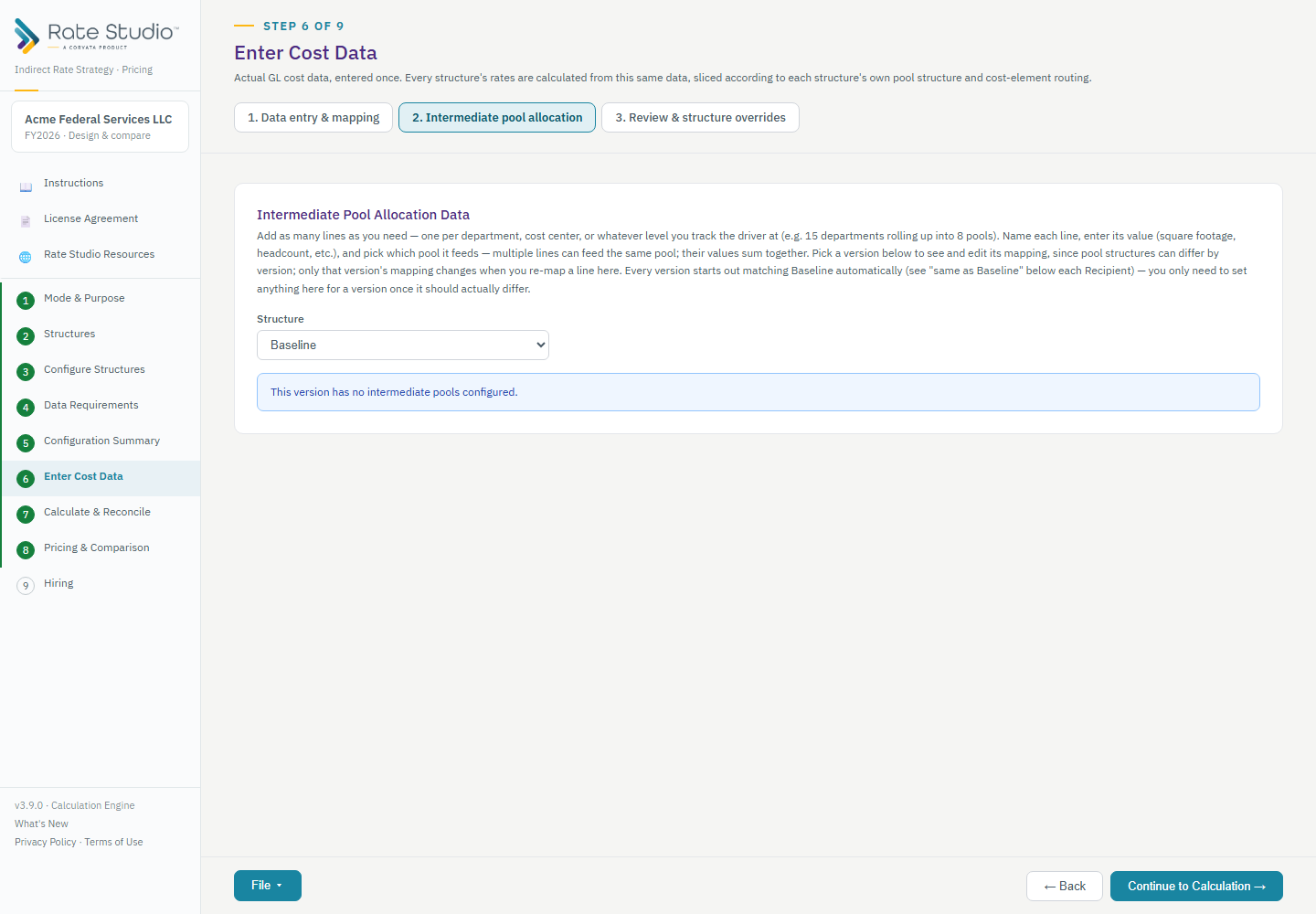
This step has up to three sub-steps, shown as tabs at the top of the screen (a step only appears if it's relevant to your configuration):
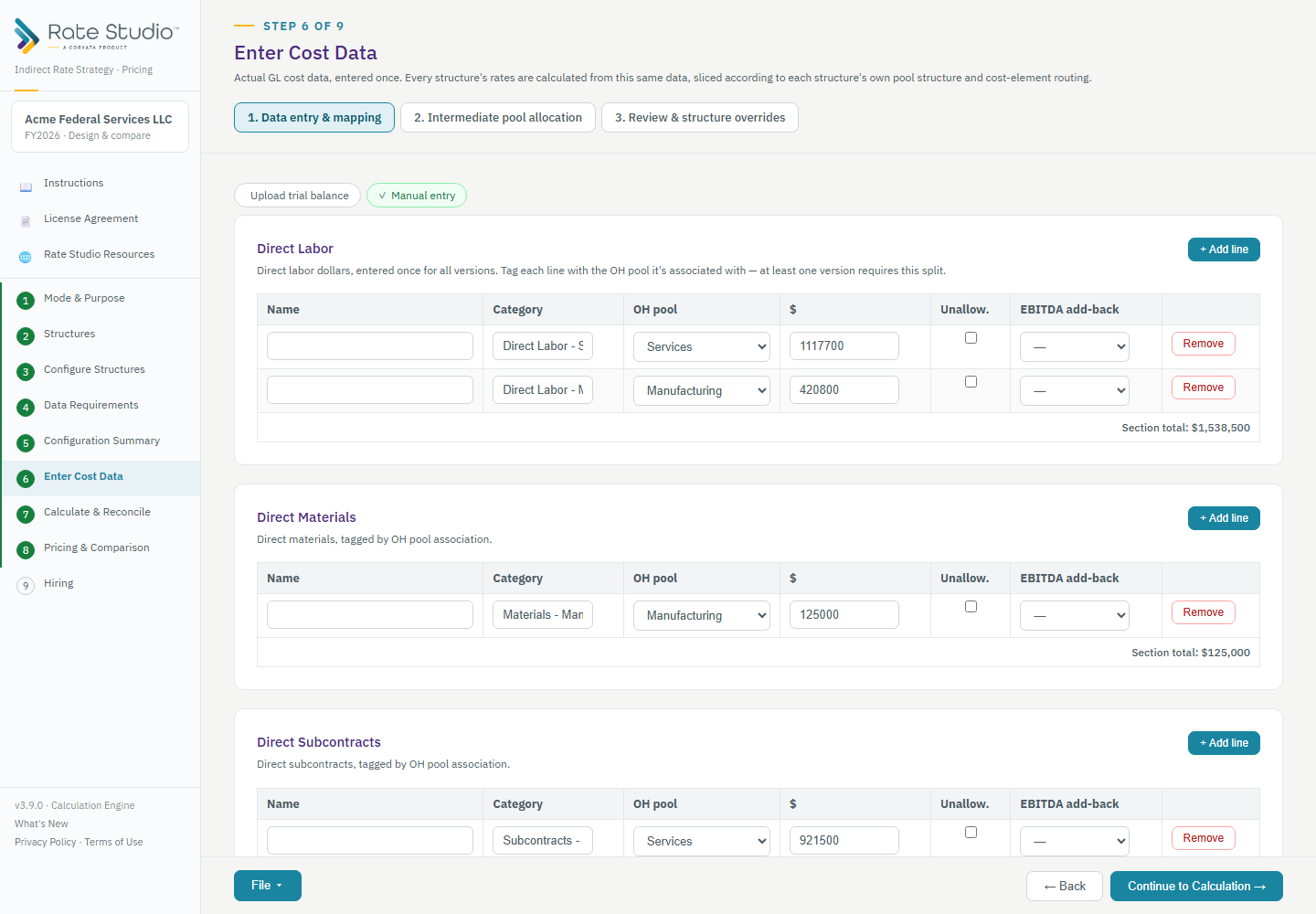
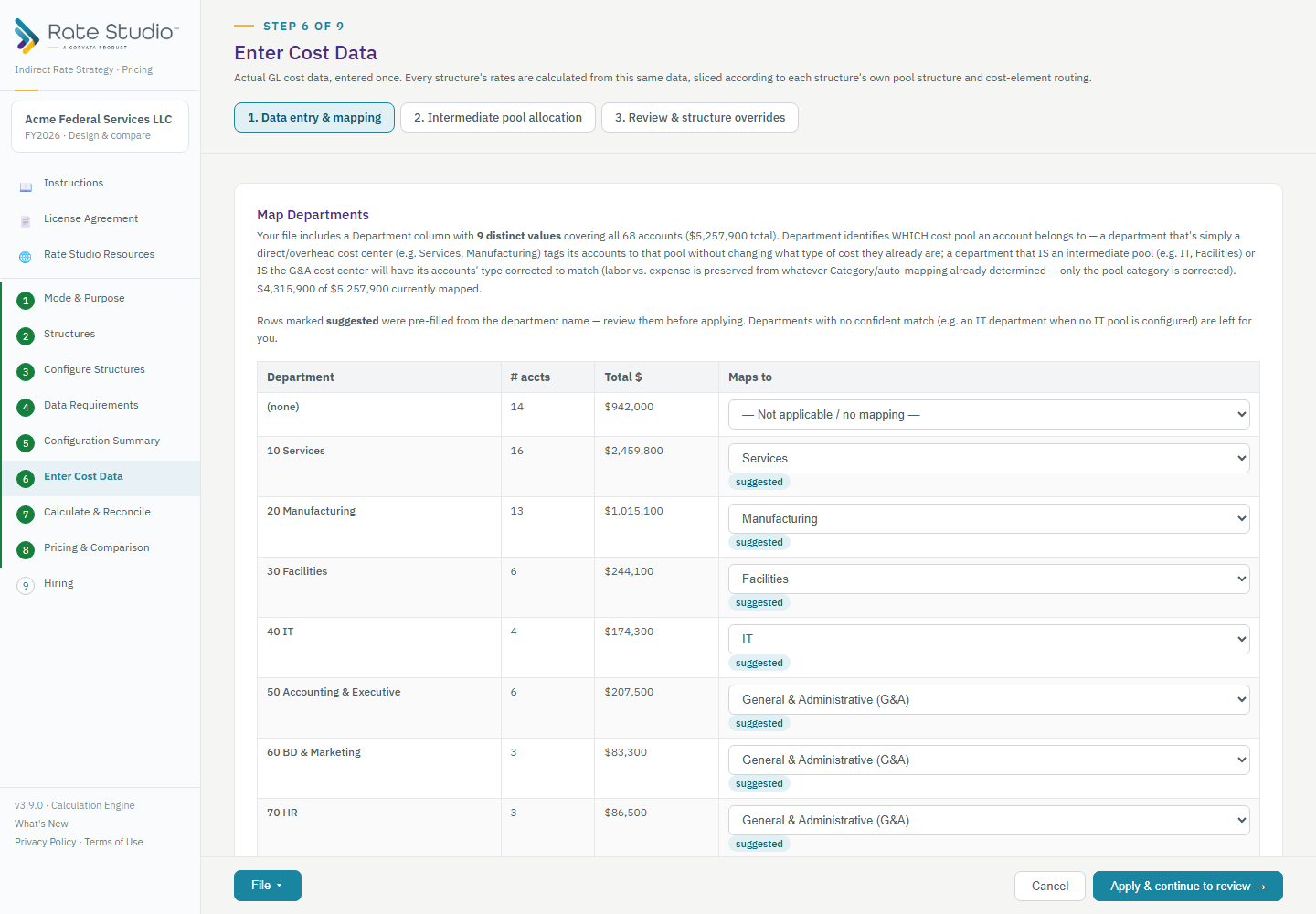
- Data entry & mapping — Upload a trial balance (CSV, pasted text, or a real .xlsx file) or enter costs manually. If your file has a Department column, you'll map departments to pools first (see below) — it makes the account mapping that follows noticeably more accurate. If it has a Category/Class column, map each distinct category once instead of every account individually. Trial balance upload also runs a rule-based first pass on anything left unmapped (optionally supplemented by a real AI call using your own Anthropic API key), but nothing commits until you explicitly review and confirm each row. Re-uploading a later period's trial balance reuses your prior account mappings automatically — you only need to review what actually changed. Cost data is shared across every structure; you enter it once.
- Department mapping (only if your file has a Department column) — Category tells the tool what kind of cost an account is; Department tells it which pool the account belongs to. Map each distinct department once to an overhead pool, an intermediate pool, or G&A — e.g. departments 90/95 might be your Services/Manufacturing overhead pools, department 60 your IT intermediate pool, and department 1020 straight to G&A. Rate Studio pre-fills each department from its name — for example "10 Services" goes to your Services pool, "30 Facilities" to your Facilities intermediate pool, Accounting, BD & Marketing and HR to G&A, and an MSOH department to MSOH — and marks those rows "suggested" so you can review them before applying. A department it cannot match with confidence (an IT department, say, when you have not configured an IT pool) is left blank for you to decide. Every account in that department follows automatically, and it feeds directly into the Category-mapping suggestions in the step above.
- Intermediate pool allocation — If any structure has an intermediate pool (Facilities, IT, HR, or custom), enter the allocation driver data here (square footage, headcount, etc.) as free-form named lines, grouped by pool. This step is structure-aware, since different structures can route the same underlying driver data to different pools. If a pool still needs allocation data after you accept and save your account mappings, Rate Studio takes you straight to this tab; clicking Continue to Calculation checks for it too and offers to take you here first, rather than letting the gap surface as a blocking error on the results screen.
- Review & structure overrides — Review and, if needed, edit any account or category's mapping. With more than one structure, this is also where a specific alternative can treat a cost category, account, or manual line differently from the shared default — e.g. Facilities booked as plain overhead in the Baseline vs. its own intermediate pool in an alternative — without duplicating the underlying data.
Calculate & Reconcile
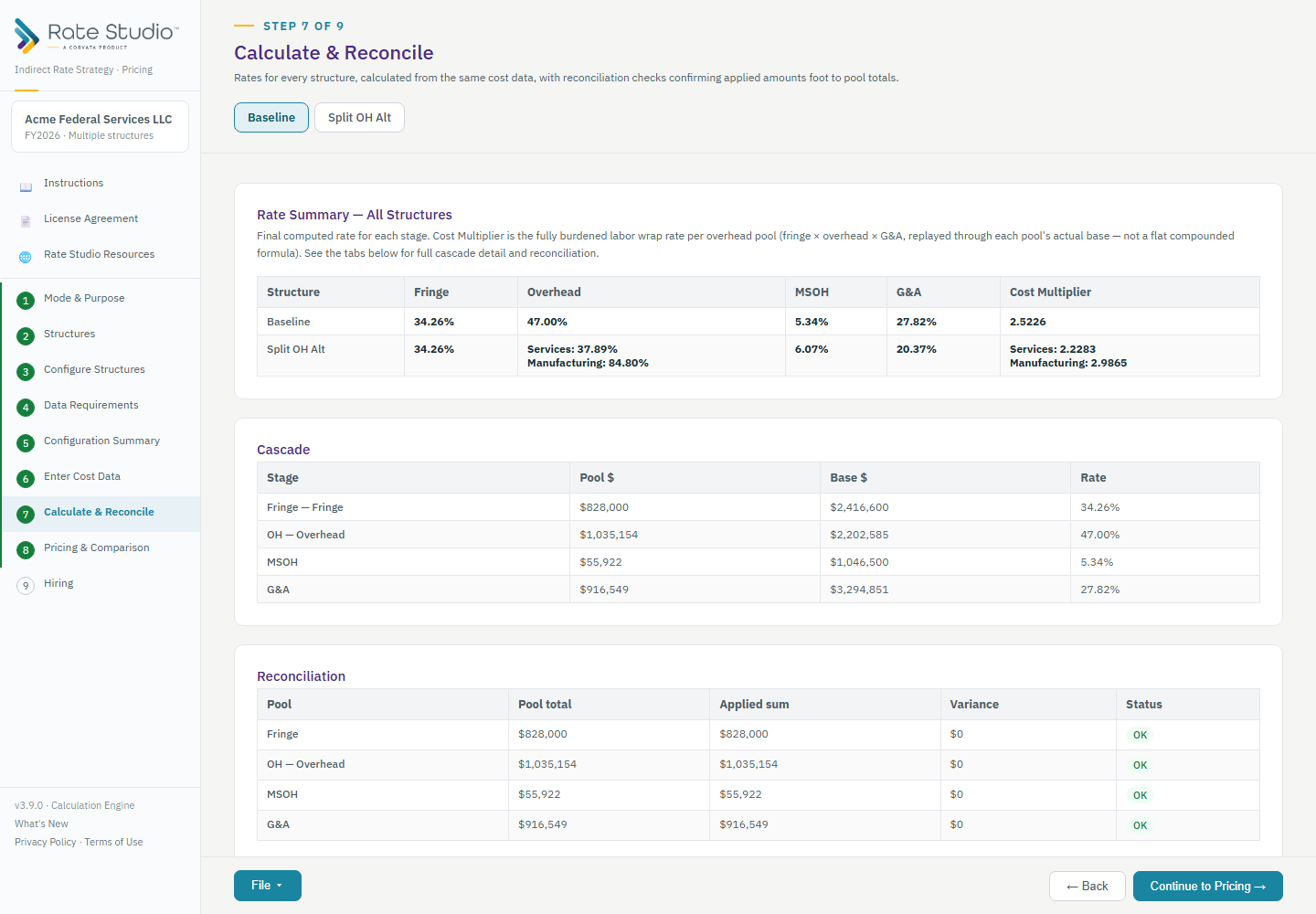
Rates for every structure, calculated from the same cost data, with reconciliation checks confirming applied amounts foot to pool totals. The Rate Summary table at the top shows every structure side by side; tabs below give full cascade detail (pool $, base $, rate, at every stage) and reconciliation status per pool.
The File menu in the footer gains three more options while you're on this screen:
- Excel report — full workbook: Rate Summary, Rate Details with account-level traceability, Trial Balance, Structure & Sample Calc.
- Summary Print/PDF report.
- Detailed Print/PDF report, showing every underlying line item that flows into each pool and base.
Pricing & Comparison
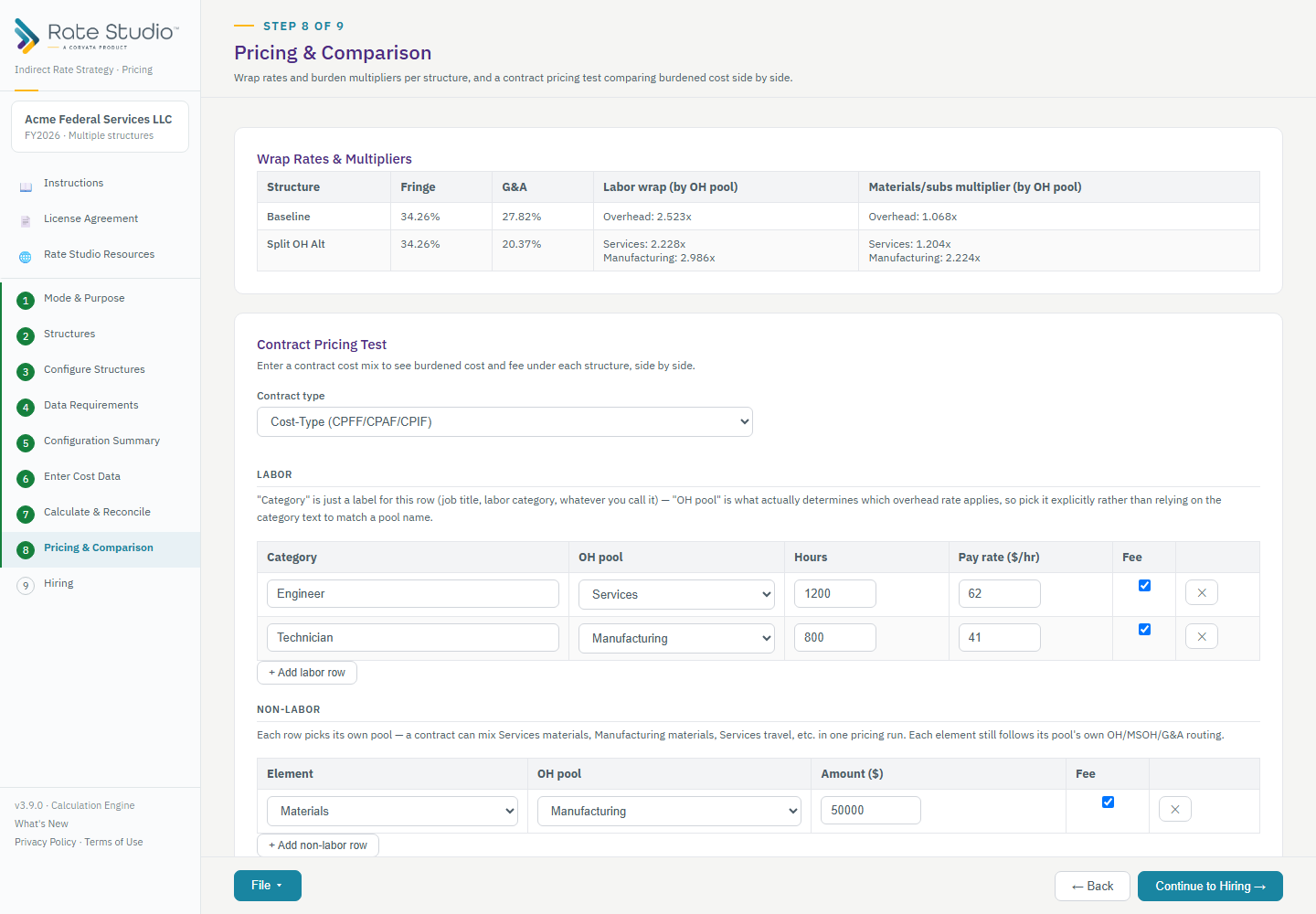
Wrap rates and burden multipliers per structure, plus a contract-pricing test. Choose a contract type — each produces a different output shape, with column totals shown directly in the table for easy footing and cross-footing:
| Contract type | What you get |
|---|---|
| Cost-Type (CPFF/CPAF/CPIF) | A three-section waterfall (labor+burden, ODCs+burden, fee), with standard non-blocking warnings if your fee exceeds 10% or 15%. |
| Fixed Price (FFP) | A full cost-component breakdown with a markup↔margin toggle — enter either one, see both simultaneously. |
| T&M / Labor Hour | A per-category billing-rate builder — enter a target billing rate or a target profit, solve for the other — plus an all-in external output ending in a contract NTE ceiling. |
Every labor and non-labor row picks its own overhead pool, so one contract can mix pools freely (e.g. Services labor together with Manufacturing materials). The File menu gains an Excel export and Print/PDF report while you're on this screen, matching Calculate & Reconcile.
Hiring
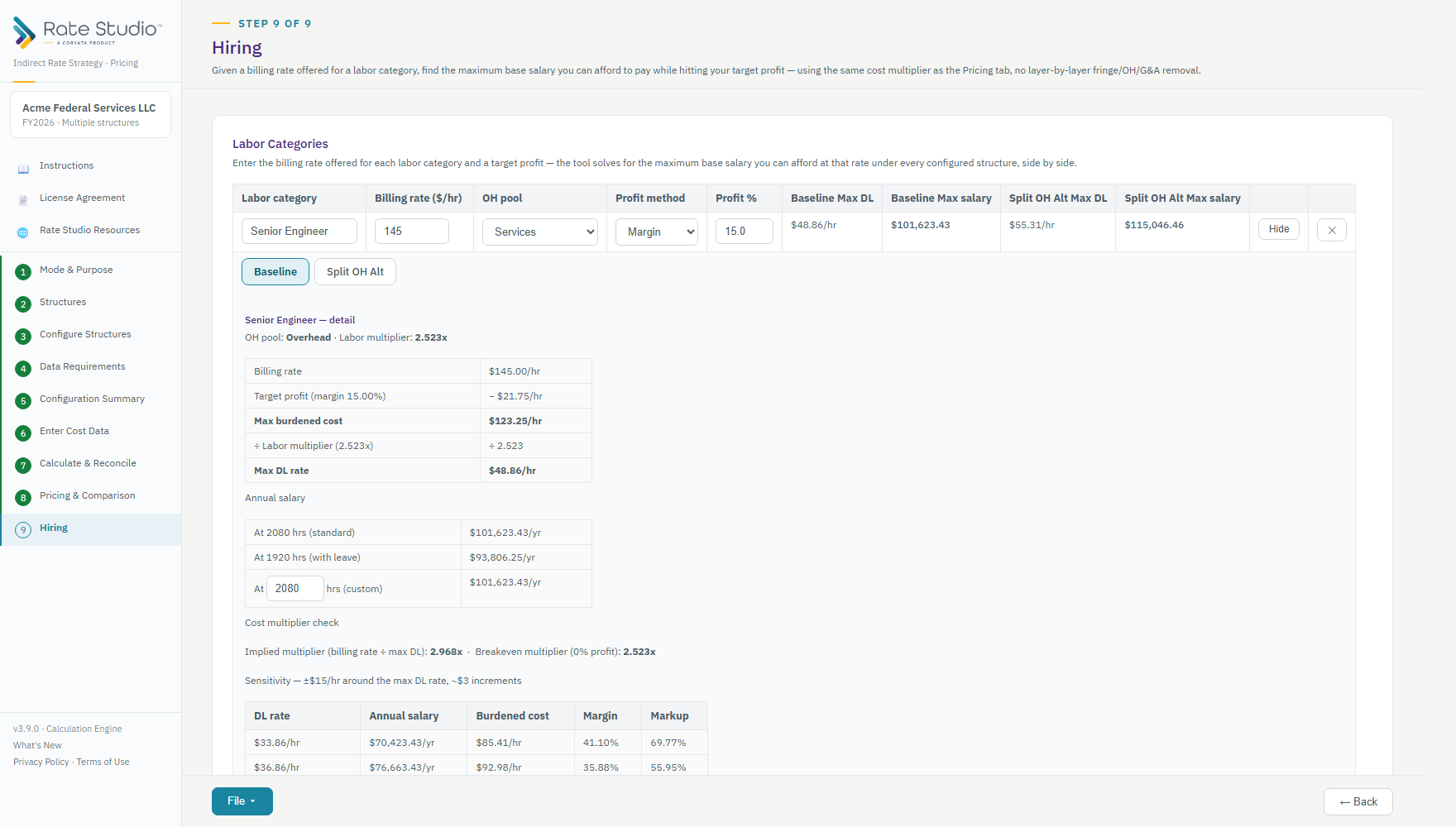
The reverse of the Pricing tab: given a billing rate offered for a labor category, find the maximum base salary you can afford while hitting a target profit — using the exact same cost multiplier the Pricing tab already computed, with no layer-by-layer removal of fringe, overhead, or G&A. Click "Detail" on any row to see the full breakdown: annual salary at standard (2,080 hrs), with-leave (1,920 hrs), and custom hours, a cost-multiplier sanity check, and a sensitivity table showing how ±$15/hr around the max rate affects your margin and markup. Every structure is shown side by side, so you can see directly how a structural change affects hiring capacity, and the Detail panel has a tab for each structure. The File menu gains an Excel export and Print/PDF report here too.
Budget, actuals and year over year.
A period is a complete set of rates for one stretch of time: its own cost data, structures, What-If adjustments and account mappings. One saved file holds as many periods as you need, and you work in one at a time. The usual year looks like this: build the budget and lock it, then calculate actual rates for each month, quarter or year against that budget, locking each period as it closes. Near year end, start next year's budget from this year's structure.
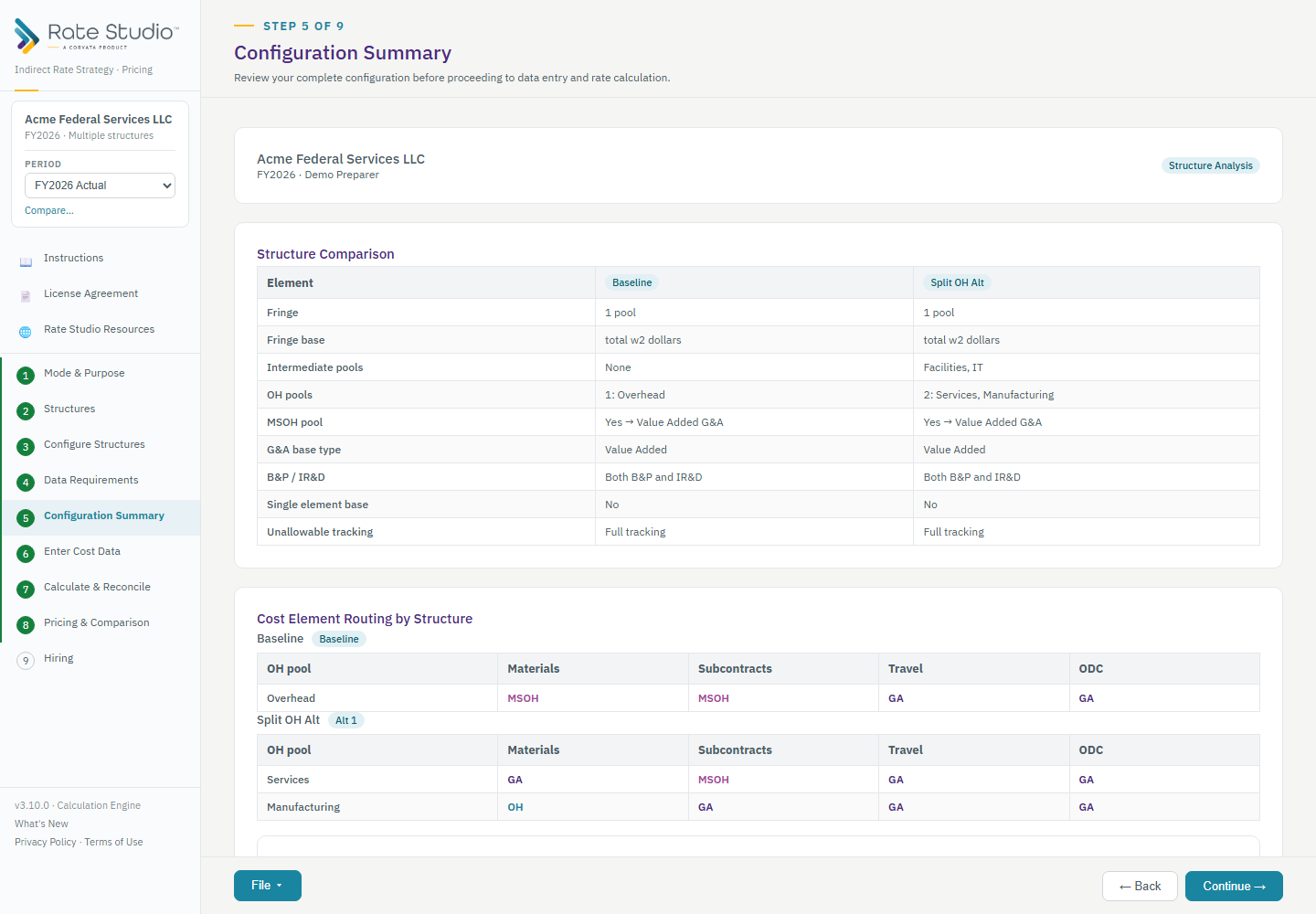
Every file starts with one period, named from your fiscal year and data type. The Period box under the client name switches between periods and holds the links to + New period, Manage, Lock and Compare…. Periods are named however you track time, such as 2026 Budget, 2026-01, 2026-Q1 or 2026 Annual. The company name is shared by every period, so it is read-only once Mode & Purpose is complete; use Edit name to change it deliberately.
Starting a new period
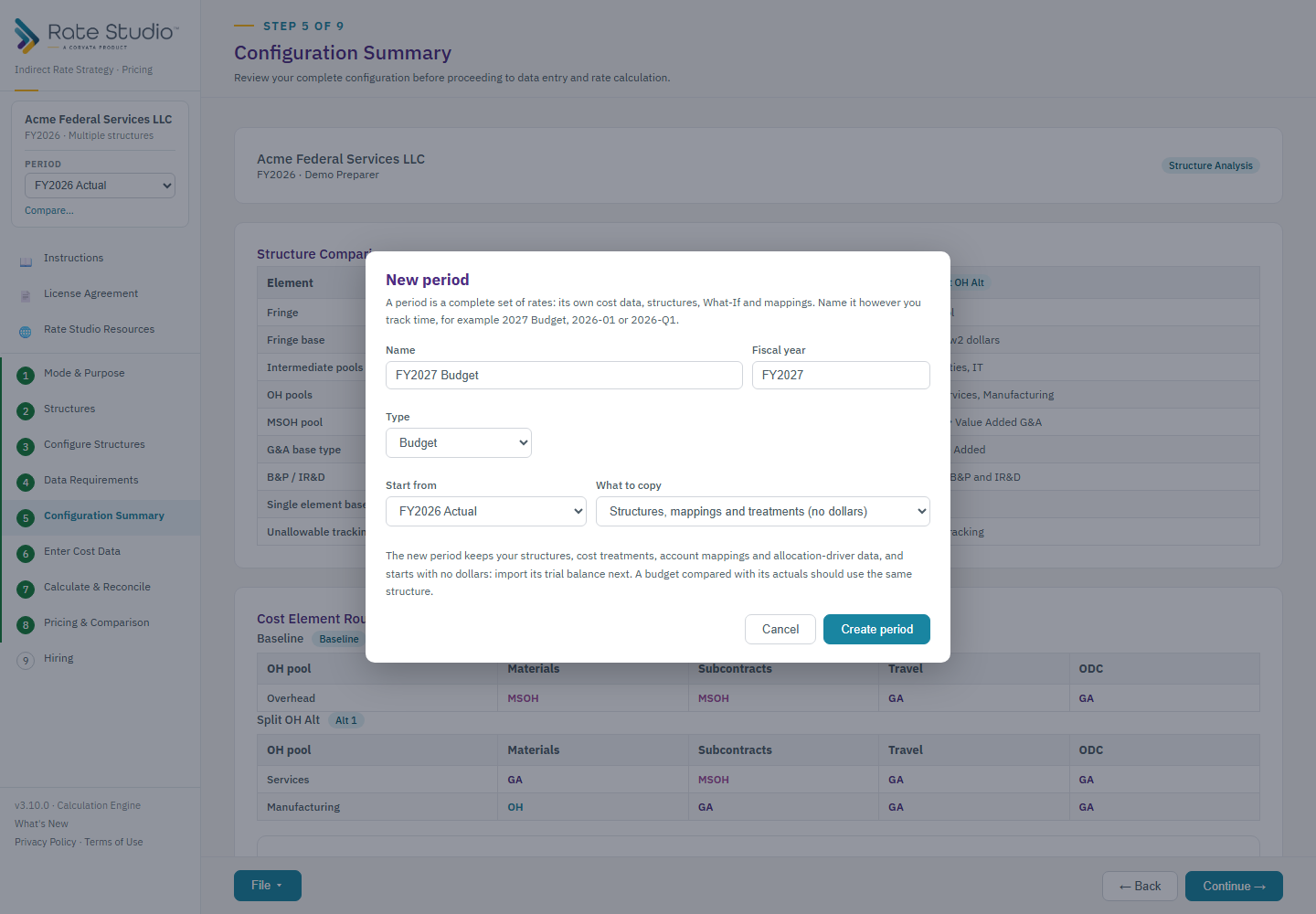
| What to copy | When to use it |
|---|---|
| Structures, mappings and treatments (no dollars) | The normal choice for a new year or a new month. You keep your pools, bases, cost treatments, account mappings and allocation-driver data, and start with no dollars. Import the new trial balance next; it behaves like any re-import, highlighting accounts that were added, renamed or renumbered. |
| Everything, including cost data and What-If | Modeling a budget from a locked one, or trying a change on a copy. The two periods are independent afterward. |
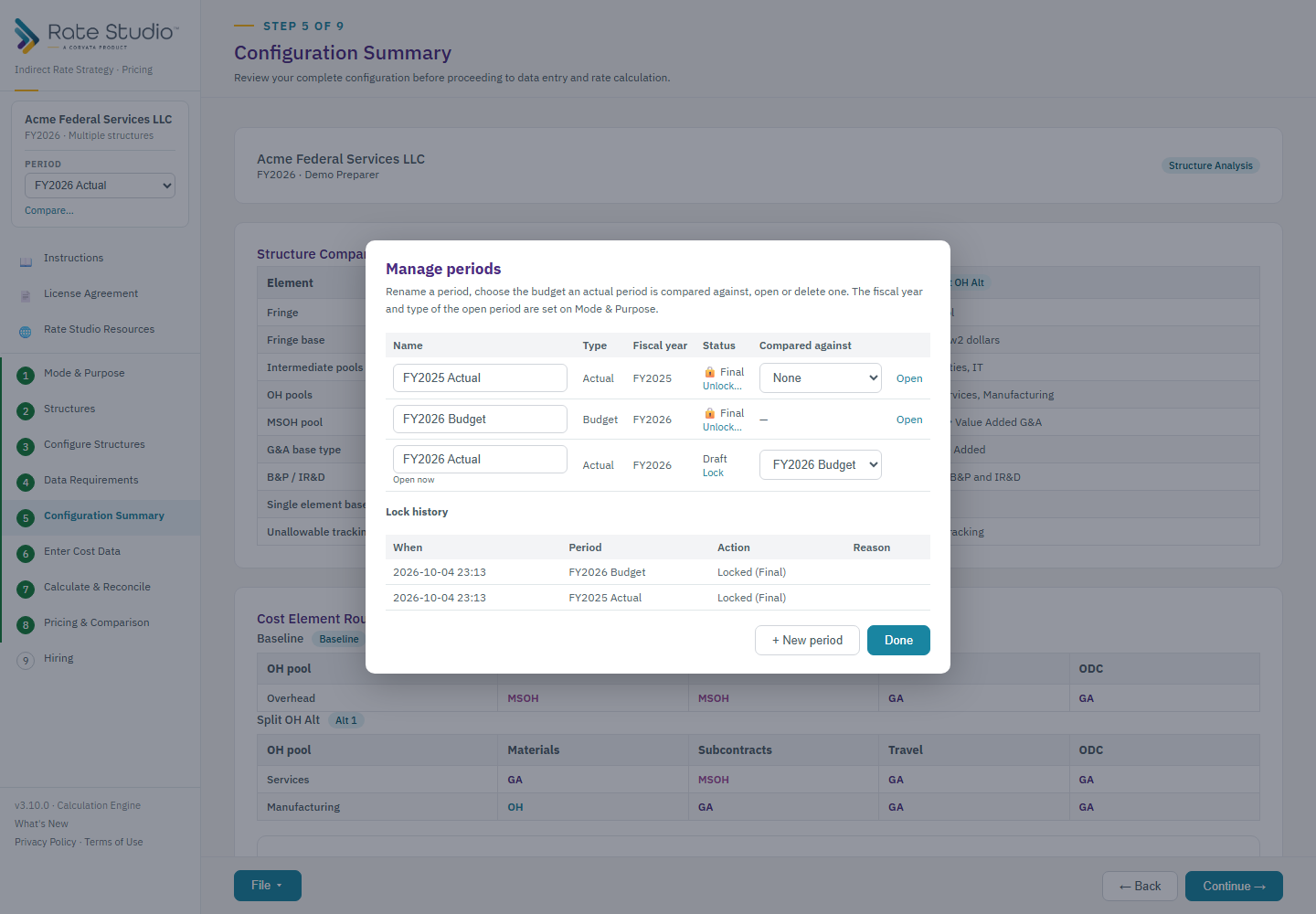
An actual period can name the budget it is compared against. Structures can differ from one period to the next, so you can keep last year's structure for last year and change it for the new budget.
Final and locked
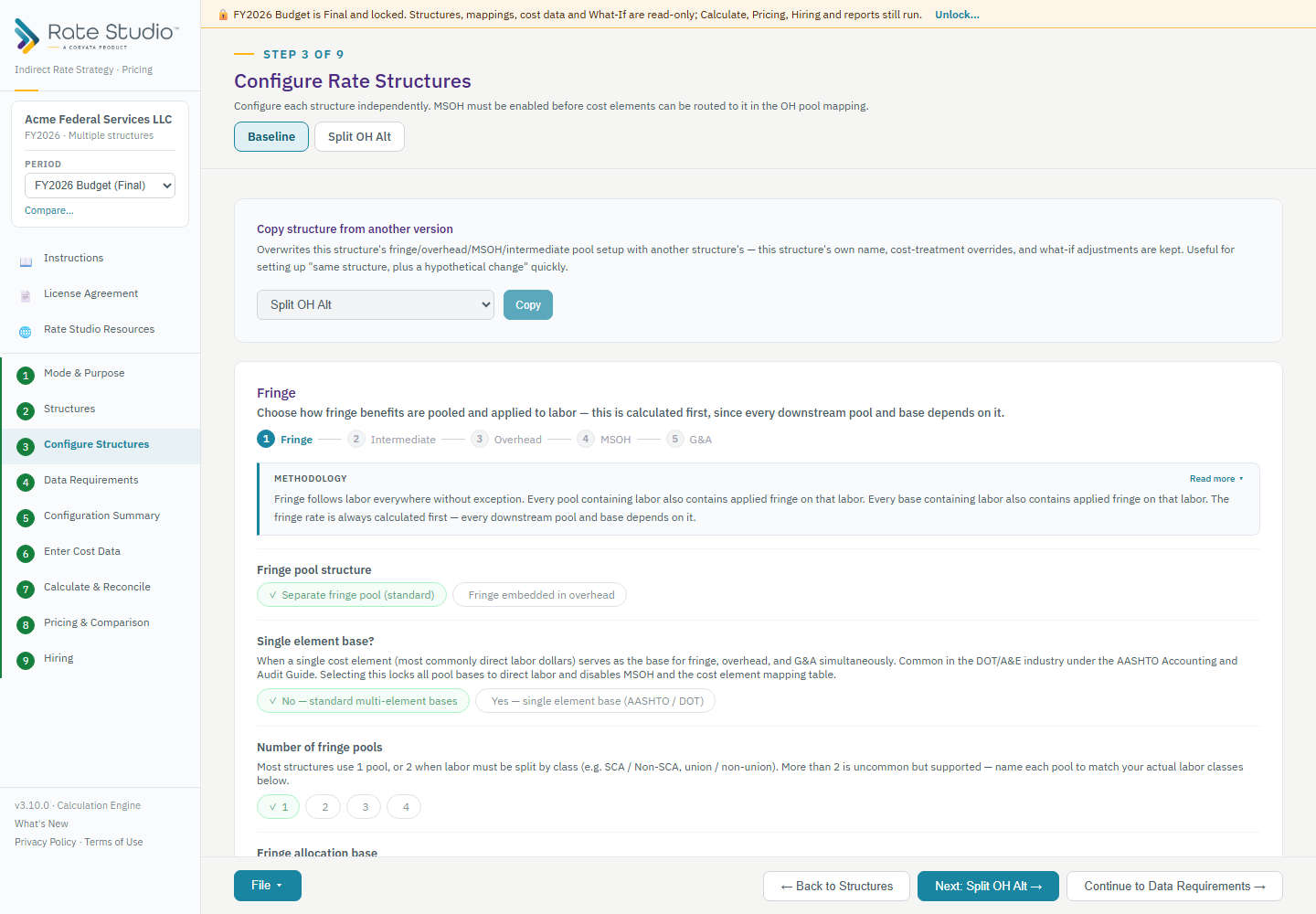
When a period closes, Lock it. A Final period cannot be edited: structures, mappings, cost data and What-If are read-only, and you cannot import into it. You can still browse every structure, run Calculate & Reconcile, Pricing and Hiring, and print or export reports. A period can only be locked when its rates reconcile and use all of its cost data, so a Final period always holds rates you can rely on. Locking records the rates as they stood at that moment.
To change a Final period you must Unlock it and type a reason. Every lock and unlock, with its date and reason, is kept in Manage and saved in the file.
Comparing periods
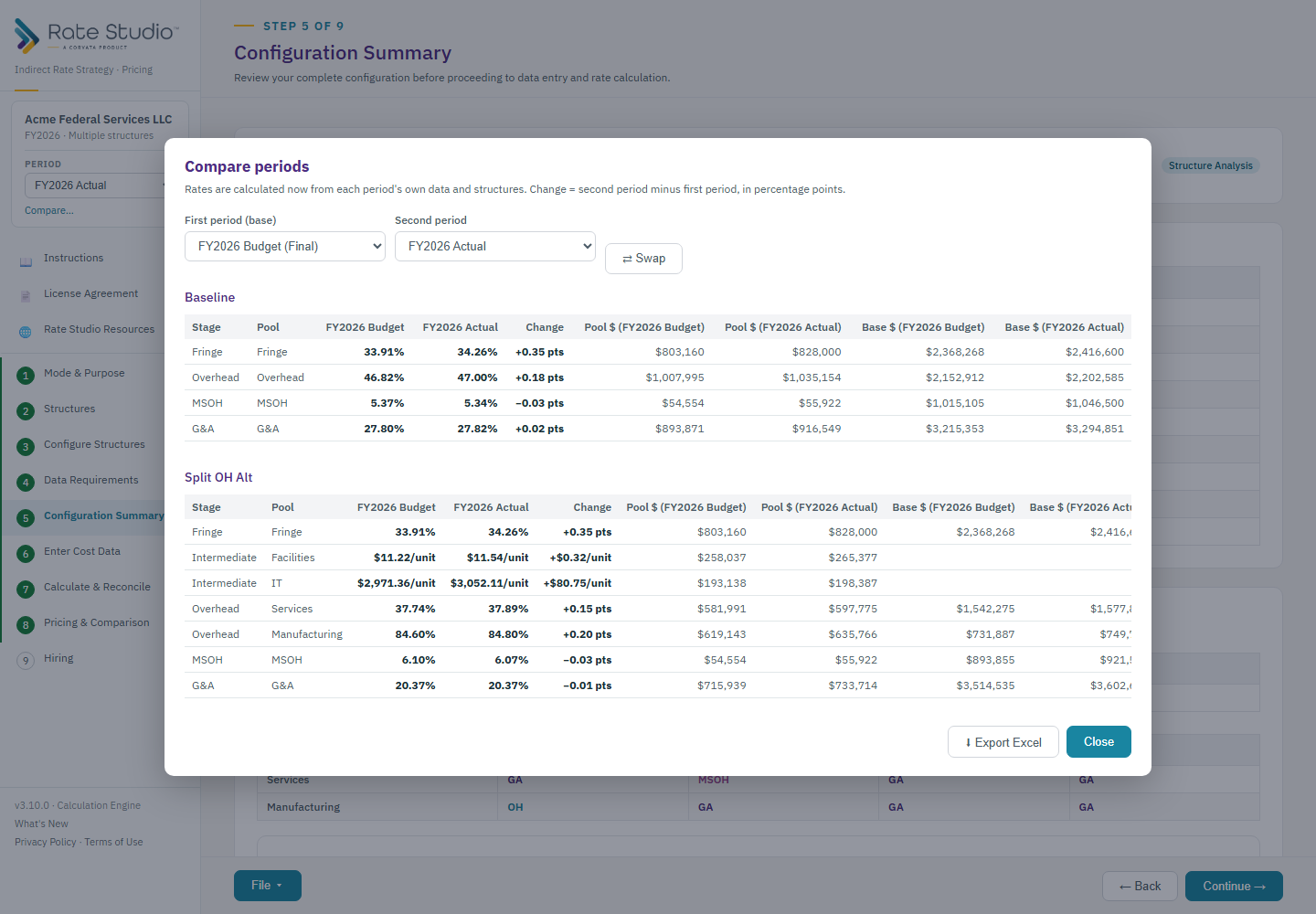
Compare… calculates two periods from their own data and shows every stage side by side (fringe, each intermediate and overhead pool, MSOH and G&A) with the change in percentage points and the pool and base dollars behind it. Export it to Excel from the same window.
Reports, Excel exports and print views always use the open period and show its name and whether it is Draft or Final in the header. Files saved before periods existed open as a single period with the same results as before.
Terms used throughout the tool.
| Term | Meaning |
|---|---|
| Fringe | Employee benefit costs (payroll taxes, health insurance, PTO, etc.), pooled and applied to labor as a rate. |
| Intermediate pool | A pure allocation vehicle (Facilities, IT, HR) that collects its own costs and allocates them into recipient overhead/G&A pools — never directly into a base. |
| Overhead (OH) pool | Indirect costs supporting a specific line of business, applied as a rate against a base such as direct labor. |
| MSOH | Material & Subcontract Handling — a pool covering the cost of procuring/administering materials and subcontracts, applied as its own rate before G&A. |
| G&A | General & Administrative — always calculated last, always at the entity level, applied against a base that is Total Cost Input, Value Added, or (rarely) Single Element. |
| Period | A complete set of rates for one stretch of time (a budget, a month, a quarter, a year) with its own cost data, structures, What-If and mappings. One saved file can hold many. |
| Final (locked) | A closed period. Its inputs are read-only and its rates were recorded when it was locked; unlocking needs a typed reason that is kept in the lock history. |
| B&P / IR&D | Bid & Proposal / Independent Research & Development — quasi-direct costs under CAS 420 that bear overhead like a direct cost but flow into the G&A pool. |
| Labor cost multiplier / wrap rate | The fully burdened cost of a labor dollar: direct labor plus applied fringe, overhead and G&A, expressed as a single multiplier, per overhead pool. |
| Non-labor cost multiplier | What a non-labor cost element (materials, subcontracts, travel, ODC) picks up: MSOH and then G&A on the MSOH amount when the element is routed to MSOH, the pool's overhead and then G&A when it sits in an overhead base, and G&A alone for all others or when MSOH is not used. It can differ by overhead pool, so the Rate Summary lists it per pool. |
| Reconciliation | A check that the sum of applied amounts across every base exactly equals the pool total, for every stage — zero variance is required. |
Corvata Rate Studio — Indirect Rate Strategy · Pricing. This guide reflects version 3.9.0. For questions about the domain rules behind any screen, see the Instructions screen inside the tool itself.